Maintaining your projector is key to ensuring a long lifespan and optimal performance, and a crucial part of this is understanding how to manage its lamp timer. Have you ever wondered why your projector keeps track of lamp hours, or what to do after installing a new lamp? The lamp timer is a vital feature that signals when a replacement is due, but simply changing the bulb isn’t enough. You must also reset the timer to ensure accurate tracking and prevent potential issues. This guide will walk you through the general steps for resetting lamp timers, provide specific instructions for popular brands like Epson and BenQ, and offer troubleshooting tips to keep your projection system running smoothly.
Understanding Your Projector Lamp Timer
A projector lamp timer is an internal counter that tracks the cumulative operating hours of your projector’s lamp. Each lamp has an estimated lifespan, typically measured in thousands of hours, and this timer helps you monitor its usage. Once the lamp reaches its projected end-of-life, the projector usually displays a warning message or indicator light, prompting you to replace it.
Resetting this timer after installing a new lamp is absolutely crucial. Without a reset, the projector will continue to display the hours of the old lamp, leading to inaccurate readings. This can cause you to replace a perfectly good new lamp prematurely or, conversely, run a new lamp beyond its intended lifespan because the system incorrectly indicates it’s still new. Accurate tracking ensures you get the most out of your lamp’s life, maintain consistent image quality, and adhere to any warranty requirements. Failing to reset can lead to confusion, unexpected lamp failures, and potentially void your lamp’s warranty.
General Steps to Reset a Projector Lamp Timer
While specific steps can vary between manufacturers and models, most projector lamp timer resets follow a similar logical path through the on-screen menu. These general steps provide a solid starting point for almost any projector.
Here’s the typical sequence:
- Turn On Your Projector: Ensure the projector is powered on and fully warmed up.
- Access the Menu: Locate the “Menu” button on your projector’s control panel or remote control and press it to bring up the on-screen display.
- Navigate to Settings: Use the arrow keys on your remote or control panel to navigate through the menu. Look for options like “Settings,” “Options,” “Management,” “Advanced,” or “Maintenance.”
- Find Lamp Settings: Within the settings menu, you’ll typically find a submenu related to the lamp. This might be labeled “Lamp Settings,” “Lamp Timer,” “Lamp Life,” or “Information” (where lamp hours are displayed).
- Select Reset Option: Once you’ve located the lamp-related section, search for an option like “Reset Lamp Timer,” “Reset Lamp Hours,” or “Clear Lamp Hour Meter.”
- Confirm the Reset: The projector will usually prompt you to confirm your decision, often with a message like “Are you sure you want to reset?” Select “Yes” or “OK” to proceed.
- Verify Reset: After confirmation, the lamp timer should revert to “0” hours, or a similar indication that it has been successfully reset. Exit the menu.
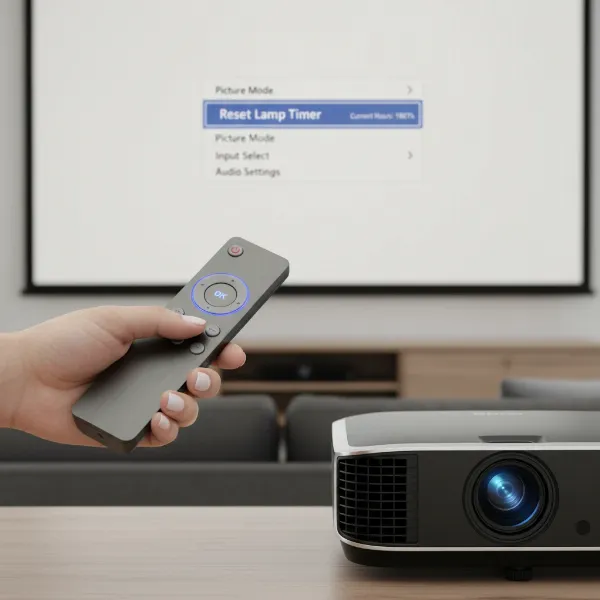 A person navigating a projector's on-screen menu to reset the lamp timer, with a remote control in hand. Modern, clean setup.
Brand-Specific Projector Lamp Timer Reset Instructions
While the general steps are helpful, some brands have specific menu structures or button combinations. Here are instructions for some popular projector brands:
Epson Projectors
|
Our Picks for the Best projector in 2026
As an Amazon Associate I earn from qualifying purchases.
|
||
| Num | Product | Action |
|---|---|---|
| 1 | 【Official Licensed Google TV】4K Smart Projector with WiFi and Bluetooth, VOPLLS Outdoor Projectors with Dolby/Auto Focus, Portable Movie Phone Wireless Gaming Wifi Proyector for Bedroom/Home/Celling |

|
| 2 | [3500 ANSI/ Official Apps/65W Audio] Outdoor 4K Projector with WiFi and Bluetooth, Auto Focus, Auto Keystone Smart Projector Support DoIby Audio, 2026 Upgrade GO2 Short Throw Projector with 360°Stand |
|
| 3 | Projector-4K with WiFi and Bluetooth:[3500 ANSI/60W Dolby Audio/Official Licensed Apps], Outdoor-Projector with Smart OS 2.0 & AI Auto Focus,ONOAYO ONO5Pro 2.0 Smart Movie Projector for Indoor/Outdoor |
|
| 4 | Epson Pro EX11000 3-Chip 3LCD Full HD 1080p Wireless Laser Projector, 4,600 Lumens Color/White Brightness, Miracast, 2 HDMI Ports, USB Power for Streaming, Built-in 16W Speaker |
|
| 5 | 【Officially-Licensed APP & Native 1080P】Thinnest 1.81\" Smart Mini Projector with WiFi and Bluetooth, Auto Focus & Keystone Portable Outdoor Projector, VOPLLS 4K Support Home Movie Projector |
|
| 6 | [Built-in Official Apps/4K Support] Smart Outdoor Projector with WiFi and Bluetooth, 800ANSI Movie Projector, DoIby Audio with Dual Speaker, Auto Focus w/ YouTube&PrimeVideo Proyector, Upgrad P62 Pro |
|
| 7 | Epson Pro EX9270 Wireless 1080p 3LCD Projector 4,100 Lumens Color and White Brightness, Apple AirPlay, Miracast, Stream from Phone or Laptop, 2 HDMI Ports, 1.6x Optical Zoom, Built-In Speaker |
|
| 8 | 1500 ANSI Official Licensed Google TV Smart Projector, HAPPRUN 4K Full HD Home Theater with Auto Focus, Dolby Sound, Wi-Fi Bluetooth, Built-in Apps, Compatible with Phone & PC, Indoor & Outdoor Use |
|
| 9 | HAPPRUN Native 1080P Bluetooth Mini Projector, Full HD Portable Outdoor Movie Projector with Built-in Speaker, Compatible with Smartphone, HDMI, USB, AV, Fire Stick, PS5 for Home, Bedroom, Outdoor Use |
|
| 10 | Aurzen Roku TV Smart Projector with Wifi and Bluetooth, Roku Streaming Experience Built-in, 1080P FHD, DoIby Audio, Auto Focus & Keystone, Zoom, Movie Portable Outdoor Mini Projector, White |
|
Epson projectors generally follow the standard menu navigation, but the exact menu names can vary slightly by model.
- Power on your Epson projector.
- Press the Menu button on the remote or projector.
- Navigate to the Reset menu (it might be under “Extended” or “Maintenance”).
- Select Reset Lamp Hours.
- A confirmation prompt will appear. Select Yes or Execute to reset the timer.
- Exit the menu.
For some older or specific Epson models, if you can’t find the “Reset Lamp Hours” under the Reset menu, check the “Info” or “Status” menu where lamp hours are displayed, and there might be a “Reset” option there.
BenQ Projectors
BenQ projectors also typically use a menu-driven reset process.
- Turn on your BenQ projector.
- Press the Menu button on the remote or projector.
- Navigate to the System Setup menu (often identified by a gear icon).
- Select Advanced or Information.
- Look for Lamp Settings or Lamp Info.
- Find the option Reset Lamp Timer or Clear Lamp Hour Meter.
- Confirm the reset when prompted by selecting Yes or OK.
- Exit the menu.
Optoma Projectors
Optoma projectors typically follow a similar menu path to other brands.
- Power on your Optoma projector.
- Press the Menu button.
- Navigate to the Management or System menu.
- Select Lamp Settings or Lamp Reset.
- Choose Reset Lamp Hours or a similar option.
- Confirm your selection when prompted.
- Exit the menu.
ViewSonic Projectors
ViewSonic projectors generally have a user-friendly menu for lamp resets.
- Turn on the ViewSonic projector.
- Press the Menu button on the remote or projector.
- Navigate to the Settings or System Setup menu.
- Locate Lamp Settings or Information.
- Select the Reset Lamp Timer option.
- Confirm the reset by choosing Yes or OK.
- Exit the menu.
Other Brands and Special Cases
Some projectors, especially older models or certain DLP units (like some InFocus, ASK, or Polyvision models), might have less intuitive methods:
- Button Combinations: Some projectors require pressing and holding specific buttons simultaneously or in quick succession. For example, some models might use a sequence like “Down, Up, Left, Right” on the arrow keys in rapid succession while in a specific menu.
- “About” or “Info” Menu: For some brands, the reset option might be found directly within an “About” or “Info” screen where lamp details are displayed, rather than a dedicated “Lamp Settings” menu.
- “Volume” Button Method: A rare method seen on some older ASK, InFocus, or Proxima projectors involves pressing and holding “Vol-” then “Vol+” for a few seconds.
Always consult your projector’s user manual for the most accurate and brand-specific instructions. The manual is your definitive guide for any unique or model-specific reset procedures.
Troubleshooting Common Lamp Timer Reset Issues
Even with clear instructions, you might encounter issues when trying to reset your projector’s lamp timer. Don’t worry, these problems are often easily resolved.
Here are some common issues and their solutions:
- Cannot Find the “Reset Lamp Timer” Option:
- Solution: Double-check all submenus within “Settings,” “Options,” “Maintenance,” and even “Information” or “About.” Sometimes the label might be slightly different (e.g., “Clear Lamp Hours,” “Lamp Management”). If still unable to find it, consult your projector’s user manual.
- Resetting Doesn’t Seem to Work (Timer Doesn’t Go to Zero):
- Solution: Ensure you’ve confirmed the reset. Many projectors require a “Yes” or “OK” selection after choosing the reset option. Power cycle the projector (turn it off, wait a minute, then turn it back on) and check the lamp hours again. If the issue persists, there might be a specific sequence required or a firmware glitch; again, the manual is your best friend.
- Projector Not Responding to Remote/Buttons:
- Solution: Check the remote’s batteries. Ensure there’s no obstruction between the remote and the projector’s IR receiver. Try using the physical buttons on the projector itself. If neither works, there might be a deeper hardware issue requiring professional service.
- Lamp Warning Light Still On After Reset:
- Solution: This usually indicates that while the timer was reset, the projector still detects an issue, often with the lamp itself or the lamp housing. Ensure the new lamp is correctly installed and securely seated. Power cycle the projector. If the warning persists, the new lamp might be faulty, or there could be a sensor problem.
The Importance of Accurate Lamp Hour Tracking
The act of resetting your projector’s lamp timer is more than just a procedural step; it’s fundamental to extending your projector’s life and maintaining its performance. Accurate tracking of lamp hours allows for proactive maintenance, ensuring you replace the lamp before it fails, which can prevent unexpected downtime, especially during critical presentations or movie nights.
Beyond convenience, keeping the lamp timer accurate contributes to:
- Optimal Performance and Brightness: Lamps naturally dim over time. An accurate timer helps you replace the lamp when its brightness has significantly degraded, ensuring you always enjoy crisp, vibrant images.
- Preventative Maintenance: By knowing the true lamp hours, you can plan for replacements, avoiding a sudden “blackout” scenario where a lamp fails completely and unexpectedly. This foresight can save you from scrambling for a last-minute replacement.
- Warranty Implications: Many lamp warranties are tied to usage hours. An accurately reset timer provides verifiable data if you ever need to make a warranty claim, proving the lamp was used within its specified parameters.
- Cost Efficiency: While lamps can be expensive, replacing them based on accurate usage rather than guesswork prevents both premature replacement (wasting money) and over-usage (potentially damaging the projector or lamp housing).
Conclusion
Resetting your projector’s lamp timer is a simple yet vital maintenance task that ensures your projector performs at its best and extends the life of your lamp. While the specific menu paths may vary across brands like Epson, BenQ, Optoma, and ViewSonic, the underlying principle of navigating to a “Lamp Settings” or “Maintenance” menu to find the “Reset Lamp Hours” option remains consistent. Always remember to perform this reset immediately after installing a new lamp to ensure accurate tracking and avoid potential issues. For any projector, your user manual is the definitive resource for precise instructions and troubleshooting. By proactively managing your lamp timer, you’re not just maintaining a device; you’re preserving the quality of your viewing experience and making a smart investment in your projector’s longevity. What’s your go-to method for keeping your projector in top condition?
Frequently Asked Questions
Why do I need to reset the lamp timer after replacing the lamp?
Resetting the lamp timer is crucial because it ensures the projector accurately tracks the usage of the new lamp. Without resetting, the projector would continue to display the hours of the old lamp, leading to incorrect estimates of the new lamp’s remaining life. This can cause you to replace a lamp too early or use it past its safe limit, potentially damaging the projector.
What happens if I don’t reset the lamp timer?
If you don’t reset the lamp timer, your projector will continue to count hours from the previous lamp. This means it won’t accurately notify you when the new lamp is nearing its end-of-life. You might experience a sudden lamp failure, diminished brightness and image quality, or even void your lamp’s warranty due to improper tracking.
Can I reset the lamp timer without actually changing the lamp?
Yes, it is usually technically possible to reset the lamp timer without installing a new lamp, as it’s a software-based counter. However, it is strongly advised not to do this. Resetting the timer prematurely will make the counter inaccurate, leading you to believe your old lamp has more life than it truly does, increasing the risk of unexpected failure or potential damage to your projector.
How often should I check my projector’s lamp hours?
It’s a good practice to periodically check your projector’s lamp hours, perhaps every few months, or whenever you notice a slight decrease in brightness or image quality. This allows you to monitor the lamp’s consumption against its advertised lifespan and anticipate when a replacement will be needed, preventing any surprises.