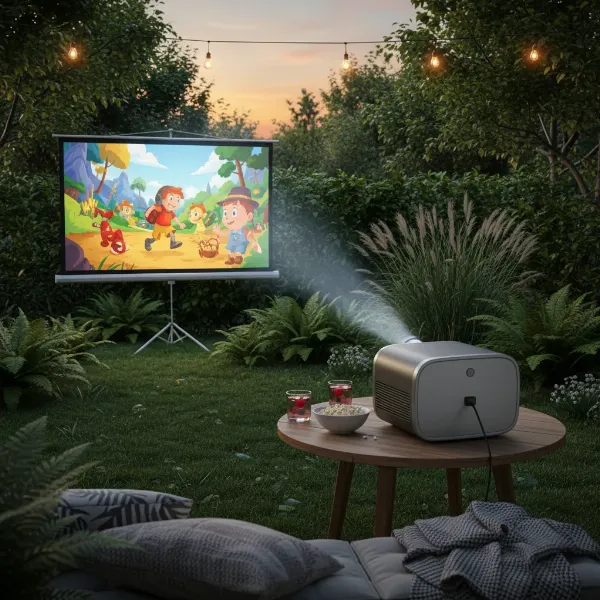
Few things are as frustrating as settling in for a movie night or preparing for a crucial presentation, only to be met with a blurry, distorted image from your projector. Achieving a crystal-clear display isn’t just about owning a great projector; it’s about knowing how to properly adjust its zoom and focus. Without these fundamental adjustments, even the most advanced projector can fall short of its potential. This comprehensive guide will transform you into a projector expert, ensuring every image you project is sharp, vibrant, and perfectly aligned with your vision.
Overview of Projectors
A projector is an optical device that projects an image or moving images onto a surface, commonly a projection screen. These devices have become indispensable tools across various settings, from enhancing home entertainment systems to facilitating dynamic business presentations and engaging educational lessons. Their ability to cast large, immersive visuals makes them a preferred choice for shared viewing experiences.
The evolution of projectors is a fascinating journey, from early magic lanterns to sophisticated digital models. Initially bulky and limited in capability, projectors have undergone significant advancements, incorporating cutting-edge technologies that deliver superior image quality and user convenience. This continuous innovation has broadened their appeal and functionality.
Today’s market offers a diverse range of projector types, each designed to meet specific needs and preferences. Key technologies include Digital Light Processing (DLP), Liquid Crystal Display (LCD), Light Emitting Diode (LED), and Laser projectors. Each type utilizes different methods to create and project images, influencing factors like brightness, color accuracy, and overall lifespan, offering consumers a wide array of choices for any application.
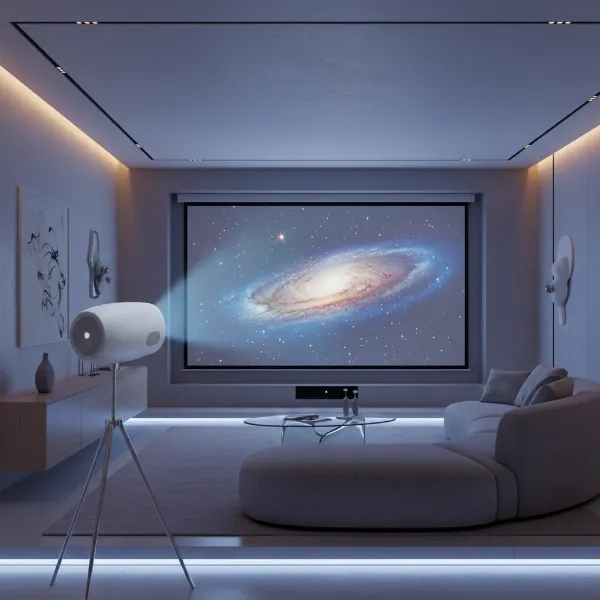 A sleek, modern projector casting a vibrant, clear image onto a screen in a dimly lit room, showcasing its primary function and advanced technology.
Crucial Factors When Choosing a Projector
Selecting the right projector involves understanding several key specifications that directly impact performance and suitability for your intended use. Delving into these factors ensures you make an informed decision that aligns with your viewing environment and quality expectations. Each element plays a vital role in the overall projection experience.
Brightness, measured in lumens, dictates how well your image will stand out, especially in rooms with ambient light. For dark home theaters, 1,500-2,500 lumens might suffice, while brightly lit conference rooms could require 3,000 lumens or more to maintain image clarity and visibility. Matching lumen output to your environment prevents washed-out images.
Resolution defines the sharpness and detail of your projected image, with common standards including SVGA (800×600), XGA (1024×768), 720p (1280×720), 1080p (1920×1080), and 4K (3840×2160). Higher resolutions offer more pixels, resulting in incredibly crisp visuals, particularly noticeable with detailed content or on larger screens. Understanding these distinctions helps you balance clarity with budget.
Contrast ratio indicates the difference between the brightest whites and the darkest blacks a projector can display. A higher contrast ratio yields deeper blacks, brighter whites, and more nuanced shadow details, contributing significantly to a richer, more dynamic picture quality and perceived depth in the image. This is particularly important for cinematic viewing.
The lifespan of a projector’s light source is another critical consideration, varying significantly between lamp-based and solid-state (LED/Laser) models. Traditional lamps typically last 2,000-5,000 hours, while LED and laser light sources can offer upwards of 20,000-30,000 hours, drastically reducing maintenance and replacement costs over the projector’s lifetime. This longevity impacts the total cost of ownership.
Keystone correction is a feature that adjusts the image to make it rectangular when the projector is not perfectly perpendicular to the screen. While useful for quick setups, it is a digital adjustment that can slightly degrade image quality, so it’s best used sparingly and physically aligning the projector is always preferred for optimal clarity. It electronically manipulates the image shape.
Throw ratio describes the relationship between the distance of the projector from the screen and the width of the projected image. This specification is crucial for determining optimal projector placement in your room, ensuring you can achieve your desired screen size without compromising image quality. Different throw ratios (short, standard, long) suit different room sizes.
Connectivity options are essential for integrating your projector with various source devices. Modern projectors commonly feature HDMI for high-definition audio and video, VGA for older computers, USB ports for direct media playback, and increasingly, wireless connectivity like Wi-Fi and Bluetooth for streaming and smart device integration. Ensure your chosen projector supports your necessary inputs.
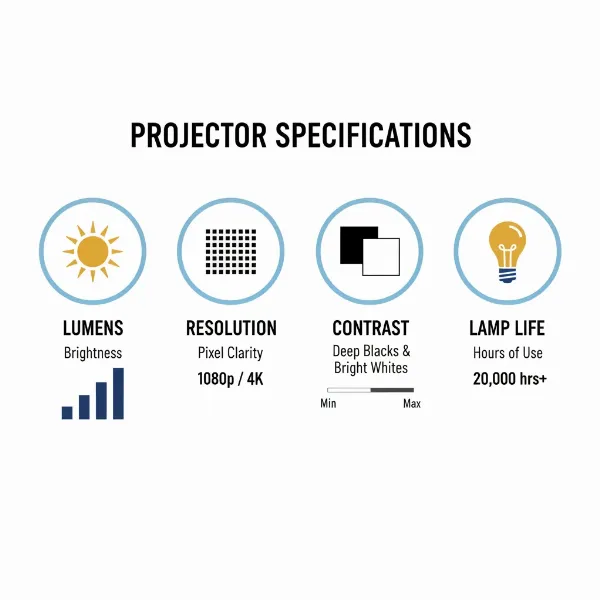 An infographic illustrating key projector specifications like lumens, resolution, and contrast ratio, with icons representing each factor for easy understanding.
Comparing Popular Projector Types
The market is rich with various projector technologies, each boasting unique advantages and disadvantages that cater to different user needs. Understanding these distinctions is key to selecting the projector that best fits your specific application and budget. Let’s explore the most common types.
Projector DLP
DLP (Digital Light Processing) projectors use tiny mirrors on a chip to reflect light, producing sharp, vibrant images with excellent contrast.
- Pros: Known for high contrast ratios, minimal “screen door” effect (visible pixels), and typically lightweight designs. They are great for fast-moving content due to quick response times.
- Cons: Some users may experience the “rainbow effect” (brief flashes of color) in single-chip DLP models. Color accuracy can sometimes be less precise than LCD.
- Best For: Home theater enthusiasts, gaming, and business presentations where sharp text and dynamic contrast are crucial.
|
Our Picks for the Best projector in 2026
As an Amazon Associate I earn from qualifying purchases.
|
||
| Num | Product | Action |
|---|---|---|
| 1 | Aurzen Roku TV Smart Projector with Wifi and Bluetooth, Roku Streaming Experience Built-in, 1080P FHD, DoIby Audio, Auto Focus & Keystone, Zoom, Movie Portable Outdoor Mini Projector, White |

|
| 2 | Projector-4K with WiFi and Bluetooth:[3500 ANSI/60W Dolby Audio/Official Licensed Apps], Outdoor-Projector with Smart OS 2.0 & AI Auto Focus,ONOAYO ONO5Pro 2.0 Smart Movie Projector for Indoor/Outdoor |
|
| 3 | 【Official Licensed Google TV】4K Smart Projector with WiFi and Bluetooth, VOPLLS Outdoor Projectors with Dolby/Auto Focus, Portable Movie Phone Wireless Gaming Wifi Proyector for Bedroom/Home/Celling |
|
| 4 | HAPPRUN Native 1080P Bluetooth Mini Projector, Full HD Portable Outdoor Movie Projector with Built-in Speaker, Compatible with Smartphone, HDMI, USB, AV, Fire Stick, PS5 for Home, Bedroom, Outdoor Use |
|
| 5 | [Built-in Official Apps/4K Support] Smart Outdoor Projector with WiFi and Bluetooth, 800ANSI Movie Projector, DoIby Audio with Dual Speaker, Auto Focus w/ YouTube&PrimeVideo Proyector, Upgrad P62 Pro |
|
| 6 | 【Officially-Licensed APP & Native 1080P】Thinnest 1.81\" Smart Mini Projector with WiFi and Bluetooth, Auto Focus & Keystone Portable Outdoor Projector, VOPLLS 4K Support Home Movie Projector |
|
| 7 | [3500 ANSI/ Official Apps/65W Audio] Outdoor 4K Projector with WiFi and Bluetooth, Auto Focus, Auto Keystone Smart Projector Support DoIby Audio, 2026 Upgrade GO2 Short Throw Projector with 360°Stand |
|
| 8 | 1500 ANSI Official Licensed Google TV Smart Projector, HAPPRUN 4K Full HD Home Theater with Auto Focus, Dolby Sound, Wi-Fi Bluetooth, Built-in Apps, Compatible with Phone & PC, Indoor & Outdoor Use |
|
| 9 | Epson Pro EX11000 3-Chip 3LCD Full HD 1080p Wireless Laser Projector, 4,600 Lumens Color/White Brightness, Miracast, 2 HDMI Ports, USB Power for Streaming, Built-in 16W Speaker |
|
| 10 | Epson Pro EX9270 Wireless 1080p 3LCD Projector 4,100 Lumens Color and White Brightness, Apple AirPlay, Miracast, Stream from Phone or Laptop, 2 HDMI Ports, 1.6x Optical Zoom, Built-In Speaker |
|
Projector LCD
LCD (Liquid Crystal Display) projectors utilize three separate LCD panels for red, green, and blue light, combining them to create the full-color image.
- Pros: Offer excellent color saturation and accuracy, making them ideal for graphics-intensive presentations and photography. They generally produce brighter images with consistent color.
- Cons: Can exhibit a noticeable “screen door” effect at close viewing distances, and black levels may not be as deep as DLP projectors. Some models can suffer from pixel degradation over time.
- Best For: Educational institutions, art displays, and users prioritizing vivid, accurate colors for presentations and photos.
Projector LED
LED (Light Emitting Diode) projectors use LED light sources instead of traditional lamps, offering significant benefits in longevity and energy efficiency.
- Pros: Extremely long lifespan (20,000-30,000+ hours), instant on/off, cooler operation, and often very compact and portable. Colors are typically stable and consistent over time.
- Cons: Generally lower brightness compared to lamp-based or laser projectors, making them less suitable for large screens or brightly lit environments. Resolution can also be a limitation in some models.
- Best For: Portable use, casual home entertainment, children’s rooms, and situations where low maintenance and energy efficiency are priorities.
Projector Laser
Laser projectors employ laser diodes as their light source, delivering exceptional brightness, color accuracy, and an incredibly long operational life.
- Pros: Unparalleled brightness, superior color gamut, deep blacks, and silent operation. They offer instant on/off and consistent brightness over their lifespan (20,000+ hours), making them highly reliable.
- Cons: Typically the most expensive projector type, requiring a significant initial investment. While durable, potential repairs can be costly due to advanced technology.
- Best For: High-end home theaters, large venues, professional installations, and environments demanding the absolute best in image quality and longevity.
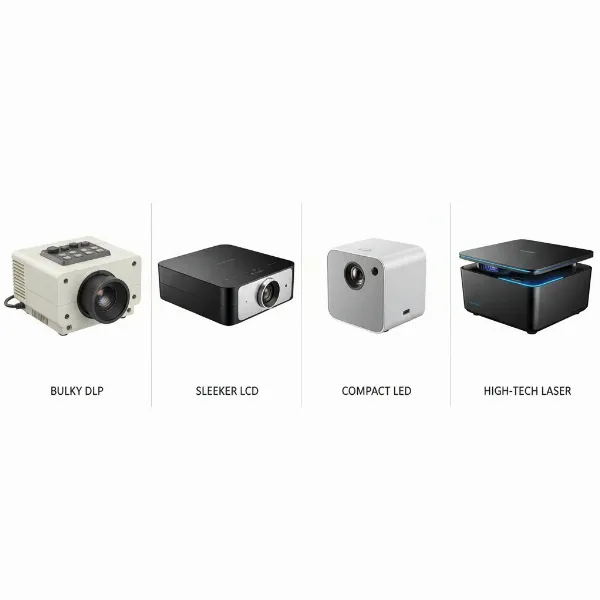 Four distinct projector types (DLP, LCD, LED, Laser) shown side-by-side, highlighting their unique physical characteristics and designs.
Detailed Comparison Table of Projector Types
To provide a clearer picture of how these projector technologies stack up against each other, here is a detailed comparison table outlining their key characteristics. This overview helps you quickly grasp the strengths and weaknesses of each type, aiding in your selection process.
| Feature | DLP Projector | LCD Projector | LED Projector | Laser Projector |
|---|---|---|---|---|
| Image Quality | High contrast, sharp, good for fast motion | Excellent color accuracy, vivid images | Good color saturation, lower brightness | Exceptional brightness, color, and contrast |
| Brightness | Moderate to High | Moderate to High | Low to Moderate | Very High |
| Lamp Life | 2,000-5,000 hours (lamp) | 2,000-5,000 hours (lamp) | 20,000-30,000+ hours (LED) | 20,000-30,000+ hours (Laser) |
| Maintenance | Lamp replacement, filter cleaning | Lamp replacement, filter cleaning | Minimal (no lamp replacement) | Minimal (no lamp replacement) |
| “Rainbow Effect” | Possible with single-chip DLP | Not present | Not present | Not present |
| Portability | Often compact and lightweight | Can be bulkier | Highly portable, often pocket-sized | Typically larger, for fixed installations |
| Cost | Mid-range to High | Mid-range to High | Low to Mid-range | High to Very High |
| Best For | Home theater, gaming, business presentations | Education, photography, graphic design | Portable use, casual viewing, children’s rooms | Professional venues, high-end home cinema, large screens |
Top Projectors in Demand Today
The projector market offers a vast array of choices, catering to every budget and specific need. From portable devices for casual viewing to high-end systems for dedicated home theaters, understanding what each price segment offers can guide your purchasing decision. While specific models constantly evolve, the general characteristics within each segment remain consistent.
Projectors Under $500 (Budget-Friendly)
Projectors in this entry-level category are ideal for casual users, students, or those new to projection technology. They typically offer decent 720p or 1080p resolution (often native 720p with 1080p support) and moderate brightness, making them suitable for dimly lit rooms. Focus is usually manual, and they might have basic keystone correction. Expect solid performance for movie nights or backyard screenings. These models prioritize affordability and ease of use, often with integrated speakers and basic connectivity.
Projectors Between $500 – $1500 (Mid-Range)
This segment strikes a balance between performance and cost, offering significant upgrades over budget models. You’ll find higher native resolutions, often full 1080p and sometimes even entry-level 4K UHD. Brightness levels are typically higher, allowing for more versatile use in rooms with some ambient light. Many mid-range projectors include advanced features like improved contrast ratios, better color accuracy, and more sophisticated lens systems, including optical zoom and digital keystone, with some introducing basic autofocus. They often come with a wider range of connectivity options and enhanced durability.
Projectors Over $1500 (Premium/High-End)
Stepping into the premium tier unlocks exceptional image quality and advanced features designed for discerning users. These projectors boast true 4K resolution, outstanding brightness (often laser or high-end LED light sources), and industry-leading contrast ratios, delivering breathtakingly sharp and vibrant images. High-end models frequently include powered zoom, focus, and lens shift, along with advanced image processing and calibration tools. They are built for dedicated home theaters, professional simulations, and large venues where uncompromising performance and longevity are paramount. These projectors often integrate smart features and robust connectivity.
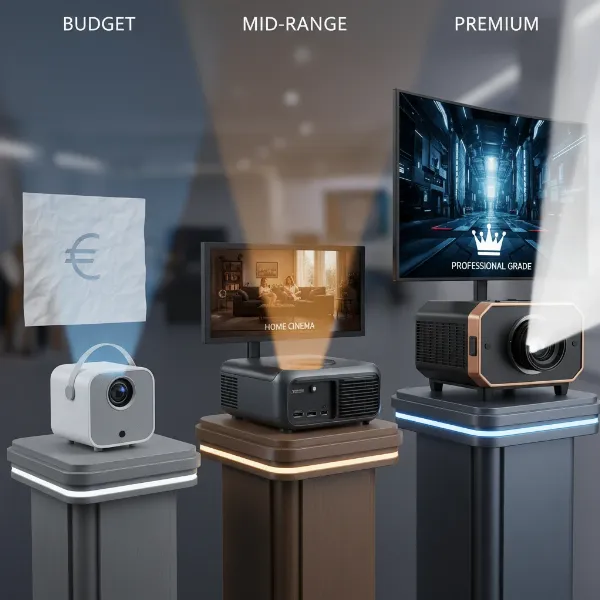 A visual representation of projectors across budget, mid-range, and premium segments, perhaps showing diverse designs or user scenarios.
How to Properly Adjust Projector Zoom and Focus
Achieving a perfectly clear and proportioned image is the cornerstone of any great projection experience. This process involves careful adjustment of both zoom and focus, often requiring a systematic approach to get every detail just right. Let’s delve into the steps and considerations for mastering your projector’s display.
Positioning and Setup
Before you even touch the focus or zoom controls, proper projector placement is paramount. Ensure your projector is on a stable, level surface or securely mounted, directly facing your screen. Any tilt or wobble can lead to distortion that even keystone correction struggles to fix without compromising quality. The distance between the projector and the screen, known as the throw distance, is critical and should ideally fall within the manufacturer’s recommended range for optimal image size and clarity.
Manual Focus Adjustment
For most projectors, especially those without advanced automatic features, manual focus is your primary tool for achieving a sharp image.
- Warm-Up Period: Turn on your projector and allow it a few minutes to warm up. Projectors often perform best once they reach operating temperature.
- Display a Test Pattern: Project a test pattern. Many projectors have built-in grid patterns or crosshairs in their settings menu. Alternatively, a text-heavy document or a high-resolution image with fine lines works exceptionally well for discerning sharpness.
- Locate the Focus Ring: Most manual projectors have a focus ring located around the lens barrel. For some models, focus might be adjusted via a small knob or remote control buttons.
- Slow and Steady Adjustment: Begin with the image slightly out of focus. Slowly rotate the focus ring clockwise and then counter-clockwise, observing the projected image carefully. Look for the point where text becomes crisp, lines are distinct, and individual pixels are clearly defined, particularly in the center of the screen.
- Fine-Tuning: Once you find the general “sharp zone,” make tiny, incremental adjustments. The goal is to achieve uniform clarity across the entire image. If focusing one side blurs the other, your projector might not be perfectly square to the screen, requiring physical realignment.
- Remote Control Focus: If your projector supports focus adjustment via remote, you might have directional buttons or a dedicated “Focus” button. Utilize these for precise digital control, often with an on-screen indicator.
Zoom Adjustment
The zoom function allows you to adjust the size of your projected image without physically moving the projector.
- Locate the Zoom Ring: If your projector has optical zoom, you’ll find a zoom ring, typically near the focus ring, on the lens barrel. For digital zoom, this will be an option in the projector’s on-screen menu.
- Adjust Image Size: Rotate the zoom ring or use the menu controls to increase or decrease the image size until it fits your screen perfectly.
- Re-focus After Zooming: It’s important to note that changing the zoom often alters the focus. After adjusting the image size, you will almost always need to re-adjust the focus using the steps outlined above to restore sharpness.
- Alternative to Zoom: If your projector lacks a zoom function, you will need to physically move the projector closer to the screen to decrease image size or farther away to increase it.
Autofocus Projectors
Many modern projectors come equipped with an autofocus feature, designed to simplify setup. These projectors use sensors to automatically detect the optimal focus point.
- Activate Autofocus: Typically, you can trigger autofocus by pressing a dedicated button on the remote or in the projector’s menu. The projector will then automatically adjust its lens.
- Manual Override: While convenient, autofocus isn’t always perfect. If the image still appears slightly soft after the automatic adjustment, you can often fine-tune it manually using the focus ring or remote control buttons. Consider this a final touch for absolute perfection.
Keystone Correction
Keystone correction electronically adjusts the image to compensate for trapezoidal distortion that occurs when the projector is angled relative to the screen.
- Understand Its Purpose: Keystone correction fixes the “keystone effect,” where the top of the image might be wider or narrower than the bottom, or vice versa. This is common when a projector is placed on a coffee table tilting up, or mounted on a ceiling tilting down.
- Use Sparingly: While helpful, excessive keystone correction is a digital manipulation that stretches or compresses pixels, which can degrade image quality and reduce native resolution. Always prioritize physical placement and alignment first.
- Physical Alignment First: Try to position your projector as squarely as possible to the screen. Use adjustable feet to level it. If tilting is unavoidable, use keystone correction minimally.
- Vertical and Horizontal Correction: Most projectors offer vertical keystone adjustment, and some include horizontal correction for off-center placement. Use the projector’s menu or remote to make these adjustments, aiming for a perfectly rectangular image. Resetting to zero and starting fresh is often a good strategy if you’ve over-adjusted.
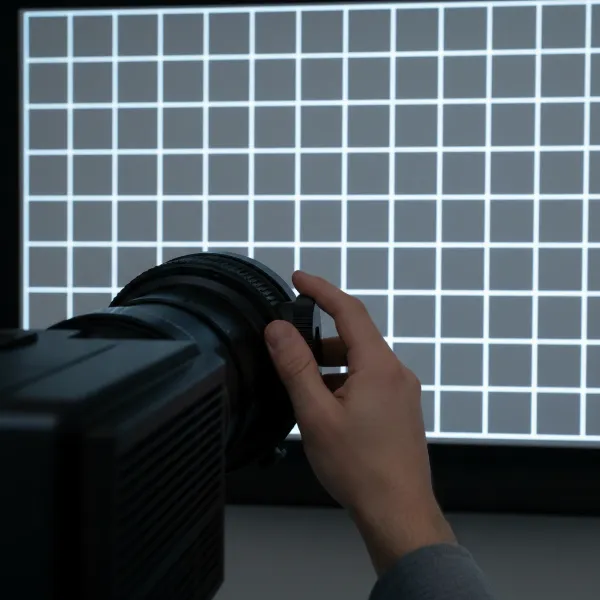 A close-up shot of a hand carefully turning the focus ring on a projector lens, with a crisp, clear projected test pattern in the background.
Common Problems Affecting Focus
Even with careful adjustment, sometimes a projector refuses to achieve a sharp image. Understanding these common culprits can help you troubleshoot effectively.
- Dirty Lens: Dust, smudges, or fingerprints on the projector lens are a frequent cause of blurry images. Always use a soft, lint-free microfiber cloth to gently wipe the lens, starting from the center and working outwards. Avoid harsh chemicals or abrasive materials that could scratch the coating.
- Incorrect Throw Distance: Every projector has an optimal throw distance range. If the projector is placed too close or too far from the screen, it may struggle to focus correctly, leading to a consistently soft or hazy picture. Consult your projector’s manual for its specific throw ratio.
- Projector Misalignment or Wobbling: A projector that is not level or is unstable can easily throw the image out of focus. Ensure it rests on a firm, flat surface or is securely mounted. Adjustable feet can help correct minor tilts and ensure the projected image is parallel to the screen.
- Aging Lamp or Light Source: For lamp-based projectors, an aging lamp can lose brightness and emit uneven light, contributing to a blurry image. Check the lamp hour counter in your projector’s settings. LED and laser light sources, while longer-lasting, can also experience issues over time, though it’s less common.
- Mismatched Resolution: Projecting content at a resolution that doesn’t match the projector’s native resolution can result in a softer image. Always try to match the output resolution from your source device (laptop, streaming stick) to the projector’s native resolution for the sharpest display.
- Screen Issues: A dirty, wrinkled, or low-quality projection surface can also affect perceived sharpness. Ensure your screen is clean, smooth, and designed for projection. Even a high-quality projector will look less sharp on an uneven or reflective wall.
Projector Buying Guide
Navigating the projector market can feel overwhelming with countless models and specifications. To make a smart purchase, it’s essential to define your needs, understand key technical terms, and leverage available resources. This guide will walk you through the process of choosing the perfect projector for you.
First, identify your primary use case for the projector. Are you creating a dedicated home theater for cinematic experiences, needing a portable device for outdoor movie nights, or looking for a robust solution for business presentations? Your intended use will dictate the necessary features, brightness, and resolution. A gaming enthusiast might prioritize low input lag, while a business user needs crisp text display.
Next, determine your budget. Projectors range widely in price, from a few hundred dollars to several thousands. Having a clear budget in mind helps narrow down your options and focus on models that offer the best value within your price range. Remember to factor in potential accessories like screens, mounts, and extra cables.
Familiarize yourself with key technical specifications such as brightness (lumens), resolution (1080p, 4K), contrast ratio, and throw ratio. These metrics directly impact image quality and how well the projector will perform in your specific environment. Don’t be swayed by marketing jargon; understand what each spec truly means for your viewing experience.
Read reviews from other users and trusted experts. User reviews often provide practical insights into a projector’s real-world performance, ease of use, and common issues. Expert reviews can offer in-depth analysis of technical aspects and compare models objectively. This collective feedback can highlight pros and cons that aren’t apparent from specs alone.
Finally, purchase from a reputable retailer. Buying from an established store, either online or brick-and-mortar, ensures you receive a genuine product, proper warranty coverage, and reliable customer support. This peace of mind is invaluable, especially for electronic devices that may require technical assistance or returns.
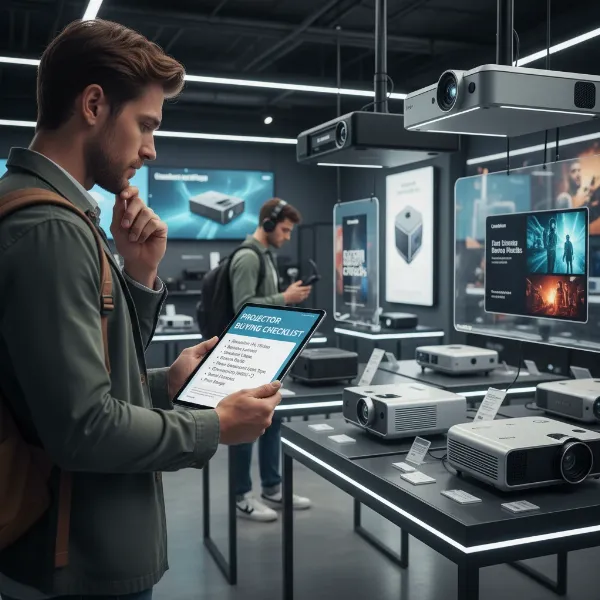 A person looking at a checklist or comparison chart on a tablet, with a projector setup in the background, symbolizing informed purchasing decisions.
Tips for Using and Maintaining Your Projector
Proper care and maintenance are crucial for extending your projector’s lifespan and consistently achieving optimal image quality. By following a few simple guidelines, you can prevent common issues and keep your display looking its best for years to come.
Regularly clean your projector lens using a specialized microfiber cloth and, if necessary, a gentle lens cleaning solution. Dust and smudges on the lens are primary causes of blurry images, and regular cleaning ensures maximum clarity. Remember to always turn off and cool down the projector before cleaning.
When not in use, keep your projector covered with a dust cover. Dust is the arch-nemesis of electronic devices, particularly projectors, where it can accumulate on the lens and internal components, impacting performance and image quality. A simple cover can significantly reduce dust buildup.
Avoid frequent relocation of your projector if possible. Each time you move the device, there’s a risk of misaligning internal components or the lens, which can lead to focus issues. If you need a portable solution, invest in a model specifically designed for portability and use a sturdy carrying case.
Regularly clean or replace the air filters as recommended by the manufacturer. Clogged filters can lead to overheating, which in turn can damage internal components and affect image stability and focus. Most user manuals provide instructions on how to access and maintain these filters.
Correctly handle your projector’s lamp if it’s a lamp-based model. Avoid touching the glass bulb with bare hands, as oils can create hot spots and reduce lamp life. Ensure the projector has proper ventilation to prevent the lamp from overheating, which can also cause image quality degradation over time.
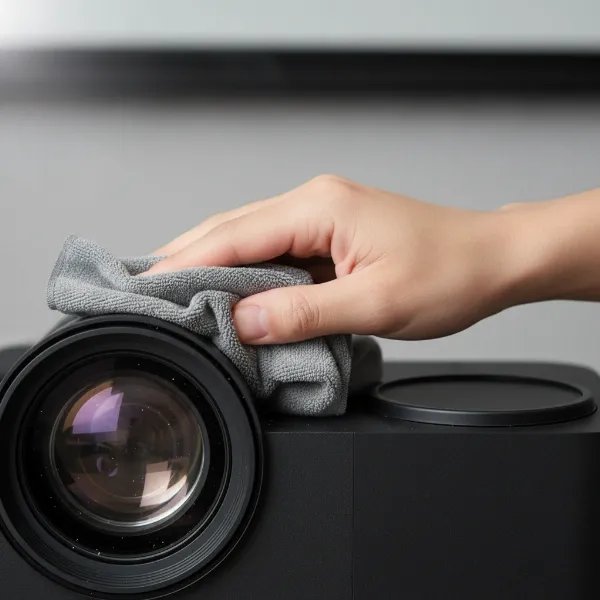 A person cleaning a projector lens with a microfiber cloth, emphasizing proper care and maintenance practices for longevity and clear images.
Conclusion
Achieving a perfectly focused and sized image from your projector is a skill that dramatically enhances any viewing or presentation experience. From understanding the nuances of manual adjustments to leveraging modern autofocus features, mastering projector zoom and focus ensures your visuals are always crisp and engaging. Remember, proper setup, regular maintenance, and a keen eye for detail are your best allies in maintaining pristine picture quality. So, take the time to fine-tune your projector; you’ll be amazed at the difference it makes. What adventures will you bring to life with your perfectly projected images?
Frequently Asked Questions
What causes a projector image to be blurry even after adjusting focus?
A blurry image after focus adjustment can stem from several issues, including a dirty lens, incorrect projector-to-screen distance, projector misalignment, or an aging lamp. Ensure your projector is stable, the lens is clean, and it’s within its optimal throw distance. Excessive digital keystone correction can also soften the image.
Should I use the zoom or physically move my projector to adjust image size?
For optimal image quality, it is generally better to use the optical zoom lens on your projector. If your projector lacks optical zoom, or if you need a significant size change, physically moving the projector is the next best option. Digital zoom should be used sparingly as it can degrade image quality.
How often should I clean my projector lens?
You should clean your projector lens whenever you notice dust, smudges, or fingerprints, or if the image appears hazy. A good practice is to perform a quick, gentle wipe with a microfiber cloth every few weeks or before important presentations or movie nights to ensure peak clarity.
Can keystone correction negatively impact my image quality?
Yes, keystone correction is a digital adjustment that distorts the image to make it rectangular. While convenient, it can lead to a slight loss in resolution, pixelation, and overall image softness, especially if applied excessively. Always try to align your projector physically as much as possible to minimize the need for keystone correction.
What is a throw ratio, and why is it important for projector setup?
Throw ratio is the distance from the projector to the screen divided by the width of the projected image. It’s crucial because it dictates where you need to place your projector to achieve a specific screen size. Understanding your projector’s throw ratio helps you plan your room layout and avoid placement issues that could prevent proper focus.