Navigating the world of projectors can feel like deciphering a cryptic code, especially when confronted with technical jargon like “native resolution” and “supported resolution.” Many consumers find themselves puzzled by these terms, often leading to purchases that don’t meet their expectations. This guide aims to demystify these crucial specifications, revealing their true meaning and helping you make an informed decision for your next projector. By understanding the core differences, you can avoid common marketing pitfalls and ensure you invest in a projector that genuinely delivers the clarity and performance you desire.
Understanding Projector Resolution: The Core Concept
At its heart, projector resolution defines the sharpness and detail of the image you see on your screen. It refers to the total number of individual pixels—tiny dots of light—that a projector can display. These pixels are arranged in a precise grid, typically expressed as horizontal pixels multiplied by vertical pixels (e.g., 1920×1080). A higher pixel count generally translates to a clearer, more vibrant, and immersive viewing experience. The more pixels packed into an image, the finer the details and the smoother the gradients, leading to a superior visual output.
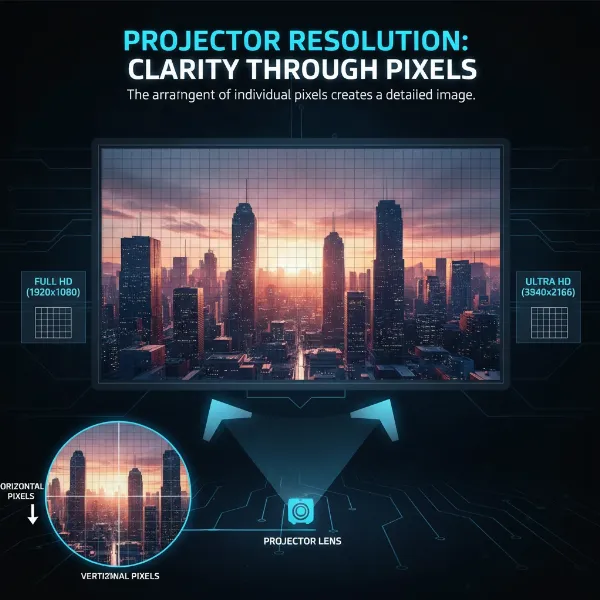 detailed graphic showing pixels forming image on projector screen
Native Resolution: The Projector’s True Identity
Native resolution is the projector’s inherent, physical display resolution, representing the actual number of pixels built into its imaging chip (DMD for DLP projectors or LCD panel for LCD projectors). This is the projector’s true capability—the maximum clarity and detail it can genuinely produce without any digital manipulation. When content is displayed at the projector’s native resolution, you are witnessing its optimal performance, as each pixel in the input signal maps directly to a physical pixel on the display chip.
Common native resolutions include 720p (1280×720), 1080p (1920×1080, also known as Full HD), and 4K UHD (3840×2160 or 4096×2160). For example, a projector with a native resolution of 1920×1080 has precisely 1920 pixels horizontally and 1080 pixels vertically on its imaging device. This specification is paramount because it sets the absolute ceiling for your projector’s image quality.
Supported Resolution: What Your Projector Can Process
Supported resolution, conversely, refers to the range of input resolutions that a projector can accept and process. This means the projector is capable of receiving video signals from various sources (like a Blu-ray player, gaming console, or computer) at these different resolutions. However, the crucial distinction is that a projector’s ability to support a certain resolution does not mean it will display it at that resolution if its native resolution is lower. Instead, the projector’s internal scaler will either upscale (add pixels) or downscale (remove pixels) the input signal to match its native resolution.
For instance, a projector might advertise “4K supported” but have a native resolution of only 1080p. While it can take a 4K input signal, it will downscale that signal to 1080p for projection, losing the benefits of true 4K resolution. This adaptability ensures compatibility with a wide range of devices and content formats but can be a source of confusion.
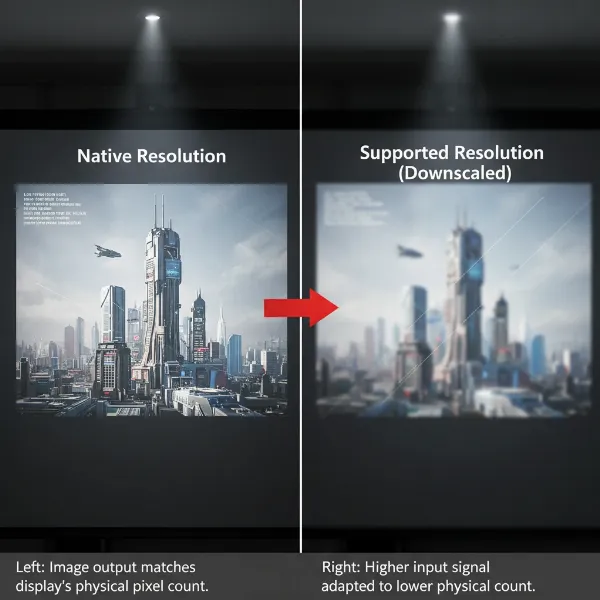 visual comparison of native vs supported resolution on projector screen
The Critical Difference: Why Native Resolution Reigns Supreme
The fundamental difference lies in physical output versus input compatibility. Native resolution is the fixed output quality, while supported resolution is the flexible input capacity. Think of it like this: if you have a canvas that measures 10×10 inches (native resolution), you can try to paint a highly detailed 20×20 inch image onto it (supported resolution). While you can technically process the larger image, you’ll have to shrink it down to fit your canvas, inevitably losing much of the original detail and sharpness. You cannot make the canvas physically larger.
The projector’s native resolution determines the maximum clarity, sharpness, and fine detail your image can ever achieve. If the input signal matches the native resolution, the image will be displayed pixel-for-pixel, resulting in the best possible picture. However, when the input resolution differs, the projector’s scaling engine has to work to convert the image. Downscaling a higher-resolution input to a lower native resolution will discard original pixel information, leading to a noticeable loss of detail and a softer, less crisp image. Upscaling a lower-resolution input to a higher native resolution doesn’t add new detail; it simply interpolates pixels, which can make the image appear softer or blurry.
“Native resolution is the bedrock of your projector’s visual performance. Any resolution beyond that is merely a compromise, adapted for compatibility rather than enhanced clarity.” – Chris Ramhold, Projector Expert
The Trap: How Marketers “Fool” Consumers
This distinction is frequently exploited in marketing, particularly for budget-friendly projectors. Many manufacturers will prominently advertise a projector’s “supported resolution” (e.g., “1080p supported,” “4K supported”) in bold, eye-catching text, leading unsuspecting buyers to believe they are purchasing a Full HD or 4K projector. However, buried in the fine print or detailed specifications, the “native resolution” might reveal a much lower figure, such as 720p (1280×720) or even 480p (854×480).
This practice can be highly misleading. A projector marketed as “1080p supported” with a 720p native resolution will always project an image that is 720p quality, even if you feed it a 1080p signal. The 1080p signal will be downscaled, losing its original sharpness. To truly experience 1080p content as it was intended, you need a projector with a native 1080p resolution. Always scrutinize the specifications sheet for the “native” or “actual” resolution to avoid disappointment.
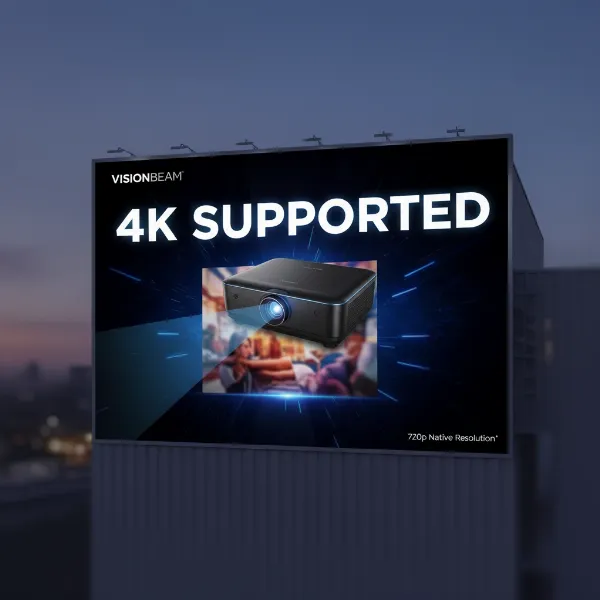 projector marketing ad showing big supported small native resolution
The Impact on Your Viewing Experience
The difference between native and supported resolution profoundly affects your viewing experience across various applications:
- Movies and TV Shows: If you project high-definition movies (1080p or 4K) on a projector with a lower native resolution, details will appear softer, textures less defined, and fine lines might become blurry or pixelated. The immersive cinematic experience is significantly diminished.
- Gaming: Gamers demand crisp visuals and quick response times. A projector that downscales your game’s native resolution can introduce blurriness, reduce critical detail in fast-paced scenes, and even potentially increase input lag, hindering your performance and overall enjoyment.
- Presentations and Text: For professional or educational settings, clarity of text and graphics is paramount. A projector with a low native resolution will struggle to display small fonts and intricate charts clearly, leading to eye strain and making your presentation less effective. Jagged edges around text and graphics are a common tell-tale sign of low native resolution.
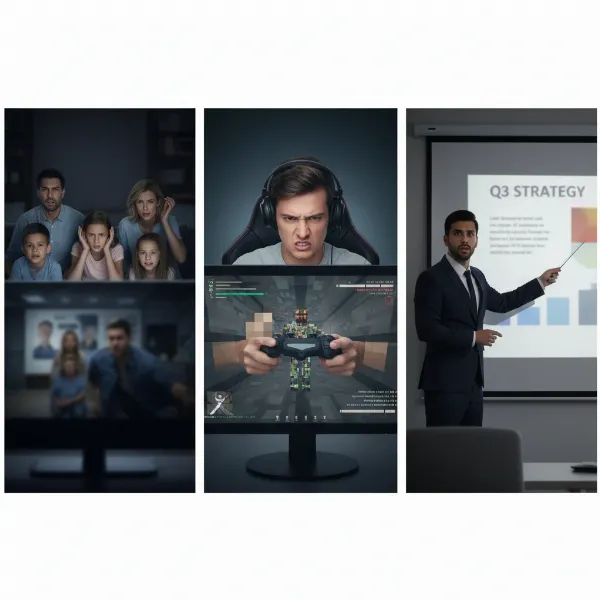 people watching blurry movie, playing pixelated game, reading unclear presentation
Choosing the Right Projector: Prioritizing Native Resolution
When selecting a projector, prioritize its native resolution above all else. Here’s how to approach your decision:
- Identify Your Primary Use Case:
- Home Theater/Gaming: For the best experience, aim for a native 1080p projector as a minimum. If your budget allows and you have 4K content sources, a native 4K projector is ideal for unparalleled detail.
- Business Presentations/Classrooms: While 1080p native is excellent, 720p (HD) native might suffice for basic presentations, especially if text size is controlled. Avoid anything lower if clarity is important.
- Portable/Casual Viewing: For occasional, casual use or outdoor camping where portability is key, a 720p native projector can offer a good balance of quality and convenience.
- Match Native Resolution to Content Source: If you primarily consume 1080p content (Blu-rays, streaming, consoles), a native 1080p projector will give you the most faithful reproduction.
- Consider Screen Size and Viewing Distance: The larger your screen and the closer your viewing distance, the more critical a higher native resolution becomes. Individual pixels become more visible on large screens at close range if the resolution is too low.
- Budget Wisely: Don’t be swayed by high “supported” resolutions on low-cost projectors. Instead, stretch your budget for the highest native resolution you can afford for your intended purpose.
- Verify Specifications: Always check the detailed product specifications, typically found on the manufacturer’s website or in the user manual, to confirm the projector’s true native resolution.
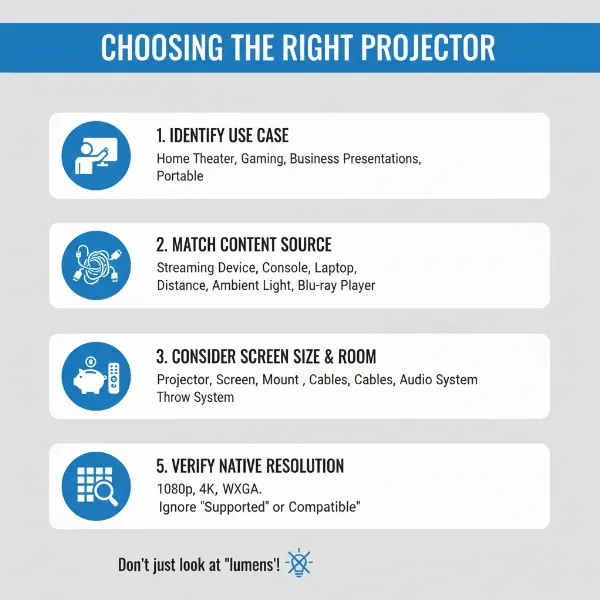 checklist for selecting projector focusing on native resolution
Expert Advice: Always Check the Native Specs
When it comes to projectors, the golden rule is simple: Native resolution is king. It dictates the true visual fidelity you can expect, regardless of what higher resolutions the projector might claim to “support.” Being aware of this critical distinction will empower you to cut through misleading marketing and invest in a projector that genuinely meets your expectations for clarity, sharpness, and overall viewing pleasure. Don’t be fooled by numbers that sound impressive but don’t reflect the actual performance.
Conclusion
|
Our Picks for the Best projector in 2026
As an Amazon Associate I earn from qualifying purchases.
|
||
| Num | Product | Action |
|---|---|---|
| 1 | 【Officially-Licensed APP & Native 1080P】Thinnest 1.81\" Smart Mini Projector with WiFi and Bluetooth, Auto Focus & Keystone Portable Outdoor Projector, VOPLLS 4K Support Home Movie Projector |

|
| 2 | [Built-in Official Apps/4K Support] Smart Outdoor Projector with WiFi and Bluetooth, 800ANSI Movie Projector, DoIby Audio with Dual Speaker, Auto Focus w/ YouTube&PrimeVideo Proyector, Upgrad P62 Pro |
|
| 3 | Aurzen Roku TV Smart Projector with Wifi and Bluetooth, Roku Streaming Experience Built-in, 1080P FHD, Dolby Audio, Auto Focus & Keystone, Zoom, Movie Portable Outdoor Mini Projector, White |
|
| 4 | Astronaut Galaxy Projector with Bluetooth Speaker & White Noise, App & Remote Control Star Projector, Galaxy Projector for Bedroom Adults Kids, Spaceman Night Light for Gaming Room, Home Theater |
|
| 5 | HAPPRUN Native 1080P Bluetooth Mini Projector, Full HD Portable Outdoor Movie Projector with Built-in Speaker, Compatible with Smartphone, HDMI, USB, AV, Fire Stick, PS5 for Home, Bedroom, Outdoor Use |
|
| 6 | Magcubic Mini Projector with WiFi 6 and Bluetooth 5.4, Portable Projector 4K Support, 5W Soundbase Speaker, Auto Vertical Keystone 180°Rotatable Smart Proyector for Movie Home Outdoor |
|
| 7 | [Officially-Licensed App & Auto Focus]Smart Mini Projector with WiFi and Bluetooth, XuanPad 4K Support Movie Projector, Portable Native 1080P Outdoor Projector with 360° Stand |
|
| 8 | Projector-4K with WiFi and Bluetooth:[3000 ANSI/40W Dolby Audio/Official Licensed Apps], Outdoor-Projector with Smart OS 2.0 & AI Auto Focus,ONOAYO ONO5Pro 2.0 Smart Movie Projector for Indoor/Outdoor |
|
| 9 | Mini Projector with Built-in Rechargeable Battery for Outdoor, Portable Projector with WiFi and Bluetooth, 4K Projector for Bedroom, Smart Projector |
|
| 10 | Mini Smart Projector, 1500 ANSI Portable Projector with WiFi and Bluetooth, HAPPRUN 4K Full HD Home Theater with 270° Stand, Dolby Sound, Built-in Apps,Compatible with Phone & PC, Indoor & Outdoor Use |
|
The distinction between a projector’s native resolution and its supported resolution is more than just technical jargon; it’s the key to unlocking the true potential of your visual experience. While a projector’s supported resolution indicates its versatility in handling various input signals, it is the native resolution—the physical pixel count of its display chip—that ultimately defines the maximum sharpness and detail of the projected image. Armed with this knowledge, you can now confidently navigate projector specifications, prioritize the critical native resolution, and avoid the common marketing traps that often lead to consumer dissatisfaction. Are you ready to choose clarity over confusion for your next projector purchase?
Frequently Asked Questions
Can a projector display content sharper than its native resolution?
No, a projector cannot display content sharper than its native resolution. The native resolution represents the physical number of pixels available on the projector’s display chip, setting the absolute limit for image detail. While it can accept and process higher-resolution signals (supported resolution), it will downscale them to its native resolution, which often results in a loss of sharpness and detail rather than an improvement.
What happens if I send a 4K signal to a 1080p native projector?
If you send a 4K signal to a 1080p native projector, the projector will downscale the 4K signal to fit its 1080p native resolution. This means that while the projector can display the content, you will not see it in true 4K quality. The image will appear as 1080p, and some of the fine details present in the original 4K signal will be lost during the scaling process.
Is “Full HD supported” the same as “Full HD native”?
No, “Full HD supported” is not the same as “Full HD native.” “Full HD native” means the projector has a physical pixel count of 1920×1080, delivering true Full HD clarity. “Full HD supported” means the projector can accept a 1920×1080 input signal, but its actual native resolution might be lower (e.g., 1280×720 or 854×480). In the latter case, the Full HD signal will be downscaled, resulting in a less sharp image than a true Full HD native projector would produce.