Unlocking the full potential of your projector for a cinematic Netflix experience is a common desire, yet many users encounter a frustrating hurdle: direct Netflix support. You’ve got your projector, the perfect wall or screen, and the anticipation of your favorite shows, only to find Netflix refuses to cooperate. This isn’t just a minor glitch; it’s a widespread issue for many projectors that lack native Netflix integration or the necessary certifications. But don’t worry, a projector not directly supporting Netflix doesn’t mean your binge-watching dreams are over. There are several effective and reliable workarounds to bridge this gap, ensuring you can stream all your desired content on the big screen.
Understanding Why Your Projector Might Not Support Netflix
Before diving into solutions, it’s crucial to understand why some projectors struggle with Netflix. The primary culprits are often related to digital content protection and licensing. Netflix, like other major streaming platforms, employs robust measures to protect copyrighted material, mainly through High-bandwidth Digital Content Protection (HDCP) and Digital Rights Management (DRM).
HDCP is a copy protection scheme designed to prevent unauthorized copying of digital audio and video content as it travels across connections like HDMI. If any component in your setup—be it the projector, HDMI cable, or an intermediary device—isn’t fully HDCP compliant, Netflix will typically refuse to play, often displaying a black screen or an error message. Similarly, DRM restrictions dictate how digital content can be used, accessed, and distributed. Many budget-friendly projectors, particularly those running modified Android systems, lack the official Netflix certification required to handle these DRM protocols correctly. Even if you manage to install the Netflix app, it might not function as expected, leading to loading failures or crashes. This lack of official authorization and proper HDCP/DRM handling is the core reason behind compatibility issues, turning what should be a simple streaming session into a perplexing technical challenge.
 Projector screen displaying a "No Netflix" symbol, illustrating the common issue of unsupported streaming
The Go-To Solution: External Streaming Devices
For many, the simplest and most reliable way to watch Netflix on a projector that lacks native support is by utilizing an external streaming device. These dedicated gadgets are specifically designed to handle all the necessary HDCP and DRM protocols, ensuring a smooth, uninterrupted streaming experience. They act as the bridge between Netflix’s strict content protection and your projector’s display capabilities.
Popular choices include the Amazon Fire TV Stick, Roku streaming devices, Google Chromecast, and Apple TV. Each offers a user-friendly interface and robust Netflix app support. To set one up, simply plug the streaming stick or box into your projector’s HDMI input port. Most streaming sticks also require a USB port for power, which some projectors provide, or you can use a separate USB power adapter. Once connected, switch your projector to the correct HDMI input, follow the on-screen setup instructions for the streaming device (which usually involves connecting to your Wi-Fi network and logging into your Netflix account), and you’ll be ready to stream. These devices are the most recommended solution because they reliably bypass the compatibility issues often encountered with built-in projector apps or direct screen mirroring.
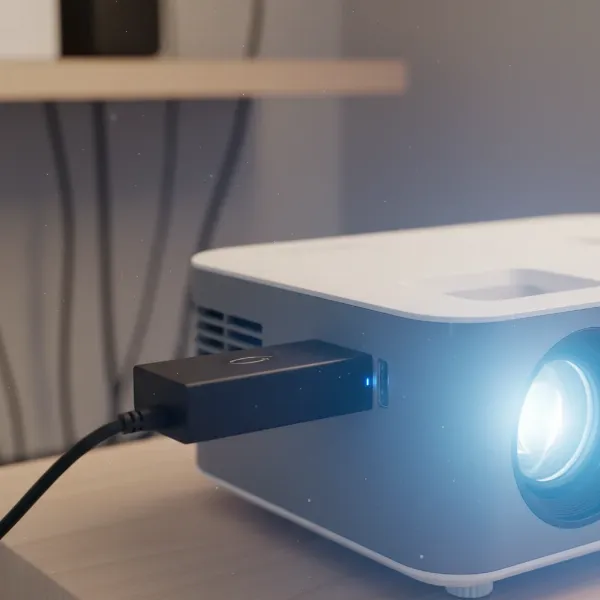 An Amazon Fire TV Stick or Roku streaming device plugged into a projector's HDMI port, demonstrating a common connection method
Alternative Methods to Stream Netflix
While external streaming devices are often the easiest path, several other methods can also get Netflix onto your unsupported projector. These alternatives leverage devices you might already own, offering flexibility depending on your setup.
Connecting a Laptop or PC via HDMI
|
Our Picks for the Best projector in 2026
As an Amazon Associate I earn from qualifying purchases.
|
||
| Num | Product | Action |
|---|---|---|
| 1 | Mini Projector with Built-in Rechargeable Battery for Outdoor, Portable Projector with WiFi and Bluetooth, 4K Projector for Bedroom, Smart Projector |

|
| 2 | Magcubic Mini Projector with WiFi 6 and Bluetooth 5.4, Portable Projector 4K Support, 5W Soundbase Speaker, Auto Vertical Keystone 180°Rotatable Smart Proyector for Movie Home Outdoor |
|
| 3 | 【Officially-Licensed APP & Native 1080P】Thinnest 1.81\" Smart Mini Projector with WiFi and Bluetooth, Auto Focus & Keystone Portable Outdoor Projector, VOPLLS 4K Support Home Movie Projector |
|
| 4 | Aurzen Roku TV Smart Projector with Wifi and Bluetooth, Roku Streaming Experience Built-in, 1080P FHD, Dolby Audio, Auto Focus & Keystone, Zoom, Movie Portable Outdoor Mini Projector, White |
|
| 5 | [Officially-Licensed App & Auto Focus]Smart Mini Projector with WiFi and Bluetooth, XuanPad 4K Support Movie Projector, Portable Native 1080P Outdoor Projector with 360° Stand |
|
| 6 | Astronaut Galaxy Projector with Bluetooth Speaker & White Noise, App & Remote Control Star Projector, Galaxy Projector for Bedroom Adults Kids, Spaceman Night Light for Gaming Room, Home Theater |
|
| 7 | HAPPRUN Native 1080P Bluetooth Mini Projector, Full HD Portable Outdoor Movie Projector with Built-in Speaker, Compatible with Smartphone, HDMI, USB, AV, Fire Stick, PS5 for Home, Bedroom, Outdoor Use |
|
| 8 | Projector-4K with WiFi and Bluetooth:[3000 ANSI/40W Dolby Audio/Official Licensed Apps], Outdoor-Projector with Smart OS 2.0 & AI Auto Focus,ONOAYO ONO5Pro 2.0 Smart Movie Projector for Indoor/Outdoor |
|
| 9 | Mini Smart Projector, 1500 ANSI Portable Projector with WiFi and Bluetooth, HAPPRUN 4K Full HD Home Theater with 270° Stand, Dolby Sound, Built-in Apps,Compatible with Phone & PC, Indoor & Outdoor Use |
|
| 10 | [Built-in Official Apps/4K Support] Smart Outdoor Projector with WiFi and Bluetooth, 800ANSI Movie Projector, DoIby Audio with Dual Speaker, Auto Focus w/ YouTube&PrimeVideo Proyector, Upgrad P62 Pro |
|
Your laptop or desktop computer is a powerful streaming hub. Almost all modern laptops come with an HDMI output, allowing for a direct and reliable connection to your projector. Simply connect an HDMI cable from your computer to your projector’s HDMI input. Once connected, make sure your projector is set to the correct HDMI source. You can then open Netflix in your web browser (Chrome, Firefox, Edge, etc.) or use the dedicated Netflix app on your computer, and the content will be mirrored or extended to your projector screen. This method is highly dependable as computers are designed to handle HDCP and DRM effectively.
Using Gaming Consoles
If you own a gaming console like an Xbox (Xbox One, Series X/S) or a PlayStation (PS4, PS5), you already have a powerful media streaming device. These consoles typically have the Netflix app available for download from their respective stores. Connect your gaming console to your projector via an HDMI cable, launch the Netflix app, and sign in. Gaming consoles are built with robust media playback capabilities and HDMI output, making them excellent, albeit sometimes bulky, alternatives for streaming Netflix.
Connecting Mobile Devices (with caution)
Streaming from your smartphone or tablet can be convenient, but it comes with a significant caveat: direct screen mirroring for Netflix often fails due to DRM restrictions, resulting in a black screen or no video. However, physical adapters offer a workaround. For iPhones, a Lightning Digital AV Adapter connected to an HDMI cable can output Netflix to your projector. For Android devices, an MHL (Mobile High-Definition Link) adapter or a USB-C to HDMI cable can serve the same purpose. These physical connections tend to bypass some DRM restrictions that block wireless mirroring. Always ensure you are using certified adapters and high-quality HDMI cables to minimize connectivity issues.
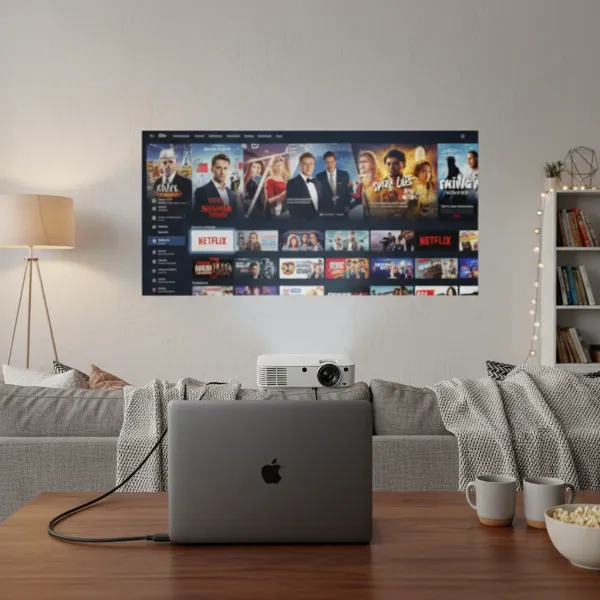 A laptop connected to a projector via an HDMI cable, displaying Netflix on a large screen, in a home theater setting
Troubleshooting Common Netflix Projector Issues
Even with the right setup, you might encounter issues. Here’s a guide to common problems and their fixes:
- Black Screen or Audio Only: This is almost always an HDCP compliance issue. Ensure all components (projector, streaming device, HDMI cable) are HDCP compatible. Try a different HDMI cable, as a faulty or old one can sometimes be the culprit.
- Netflix Not Loading or Crashing: This could stem from several factors. First, check your internet connection. A slow or unstable connection will prevent Netflix from loading properly. Second, ensure all software and firmware are updated: your projector (if applicable), streaming device, and the Netflix app itself. Outdated software can lead to compatibility problems.
- Poor Picture Quality or Buffering: Primarily a network issue. Test your Wi-Fi speed (Netflix recommends at least 5 Mbps for HD). Move your projector or streaming device closer to your router, or consider using a Wi-Fi extender. For the most stable experience, a wired Ethernet connection to your streaming device (if supported) is always recommended.
- No Signal: Double-check all HDMI connections to ensure they are securely plugged in at both ends. Also, verify that your projector is set to the correct HDMI input source where your streaming device or computer is connected.
Sometimes, a simple restart can work wonders. Power cycle your projector, streaming device, and even your router to clear any temporary glitches.
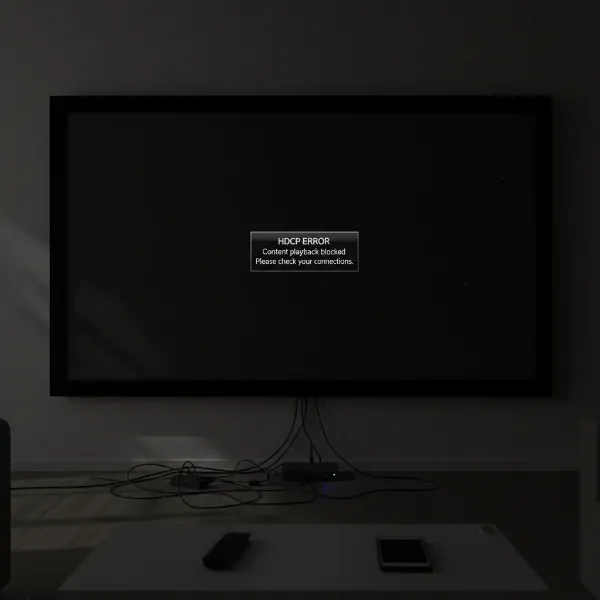 A projector displaying a black screen with an error message, representing a common streaming issue
Choosing the Right External Device for Your Setup
Selecting the ideal external streaming device can significantly enhance your Netflix experience on an unsupported projector. Each popular option offers a slightly different set of features and ecosystem integration:
- Amazon Fire TV Stick: Excellent for Amazon Prime Video users, often features voice control with Alexa, and comes in various models (Lite, 4K, 4K Max) offering different resolutions and speeds. Generally affordable.
- Roku Streaming Stick/Express/Ultra: Known for its vast app selection and simple, intuitive interface. Roku devices are platform-agnostic, supporting most major streaming services without favoring one ecosystem. They offer great value across different price points.
- Google Chromecast: Designed primarily for casting content from your phone, tablet, or computer. The Chromecast with Google TV adds a remote and an on-screen interface, essentially turning it into a full streaming player. Great for those deeply integrated into the Google ecosystem.
- Apple TV: A premium option with seamless integration for Apple users (iPhone, iPad, Mac). It offers high performance, a sophisticated interface, and supports features like AirPlay 2. It’s typically the most expensive but provides a smooth, reliable experience for those invested in Apple’s ecosystem.
Consider your existing smart home ecosystem, desired resolution (HD, 4K), budget, and preferred user interface when making your choice. All these devices consistently handle Netflix’s HDCP and DRM requirements, making them reliable solutions for your projector.
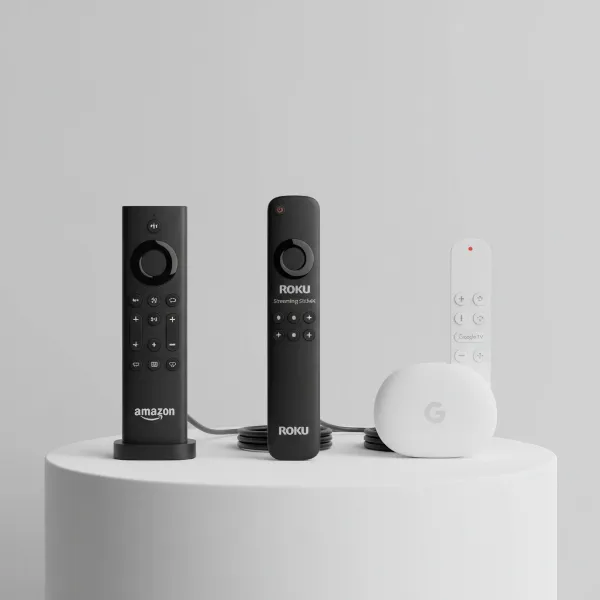 A lineup of different streaming devices like Amazon Fire TV Stick, Roku, and Google Chromecast, illustrating choices
Maximizing Your Netflix Projector Experience
Once you have Netflix successfully streaming to your projector, there are a few extra steps you can take to elevate your viewing experience.
Optimizing Audio: Projectors often have basic built-in speakers. For a truly immersive experience, connect your external streaming device or computer to a dedicated sound system or soundbar. Most streaming devices can connect to external speakers via Bluetooth or through an HDMI ARC/eARC port on your AV receiver if your projector supports it. Alternatively, many projectors have a 3.5mm audio jack for direct connection to headphones or small speakers.
Ensuring Good Wi-Fi: A stable and fast internet connection is paramount. Position your Wi-Fi router optimally, away from obstructions, and consider using a mesh Wi-Fi system or an Ethernet connection for your streaming device if stability is an issue. Regular speed tests can help diagnose and resolve buffering problems.
Best Practices for Projector Settings: Experiment with your projector’s picture settings. Adjust brightness, contrast, color saturation, and sharpness to suit your viewing environment and personal preference. Darker rooms generally require less brightness. Ensure your projector is properly focused and positioned to fill the screen without keystone distortion. Regular cleaning of the projector lens and filters will also maintain optimal image quality.
By paying attention to these details, you can transform a simple projection into a captivating, large-screen home theater experience that rivals a dedicated TV setup.
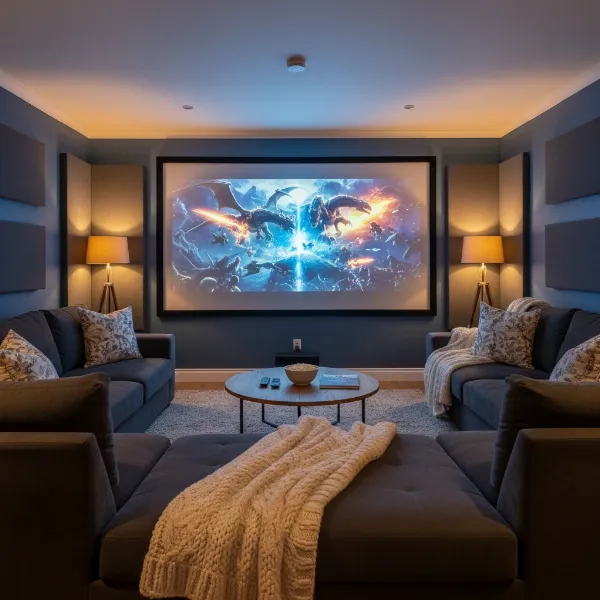 A cozy home theater setup with a projector displaying a movie on a large screen, comfortable seating, and ambient lighting, perfect for Netflix viewing
Conclusion
Watching Netflix on a projector that doesn’t natively support it is a common challenge, but one that is easily overcome with the right approach. The key lies in understanding the technical hurdles of HDCP and DRM, and then leveraging external devices designed to navigate these protections. While built-in apps might seem convenient, the most reliable and straightforward solution remains using a dedicated streaming stick like an Amazon Fire TV Stick, Roku, Google Chromecast, or Apple TV. These devices, along with alternatives like connecting a laptop or gaming console via HDMI, ensure you can enjoy your favorite Netflix movies and shows on the big screen without compatibility frustrations. With a proper setup, a stable internet connection, and optimized projector settings, your home can become a personal cinema, ready for endless entertainment. So, what blockbuster will you project next?
Frequently Asked Questions
Why does Netflix show a black screen on my projector?
A black screen with audio, or no display at all, when trying to watch Netflix on your projector usually indicates an HDCP (High-bandwidth Digital Content Protection) issue. This means one of your components (projector, HDMI cable, or streaming device) isn’t fully compliant with Netflix’s copy protection standards.
Can I just screen mirror Netflix from my phone to my projector?
Direct screen mirroring of Netflix from a phone or tablet to a projector is generally unreliable and often blocked due to DRM (Digital Rights Management) restrictions. Netflix’s content protection prevents unauthorized duplication, leading to black screens or failed connections. It’s better to use a physical HDMI adapter for mobile devices or an external streaming stick.
Do all projectors support Netflix?
No, not all projectors support Netflix natively. Many budget or older projectors, even those running Android systems, may not have the official Netflix certification required to run the app correctly due to licensing and DRM limitations. External streaming devices are often necessary for such projectors.
What is the best external device to watch Netflix on a projector?
The “best” device depends on your ecosystem and preferences, but popular and reliable options include the Amazon Fire TV Stick, Roku streaming devices, Google Chromecast, and Apple TV. All these devices are designed to handle Netflix’s content protection seamlessly and offer a user-friendly experience.
How can I improve Netflix streaming quality on my projector?
To improve streaming quality, ensure you have a stable and fast internet connection (Netflix recommends at least 5 Mbps for HD). Use a wired Ethernet connection for your streaming device if possible, or place your Wi-Fi router closer to your setup. Also, check your Netflix playback quality settings and ensure your projector’s resolution and picture settings are optimized.