Ever walked past a storefront and seen a crisp, vibrant video seemingly floating on a pane of glass? Or been to an event where the presenter could walk right in front of the screen without casting a single shadow? That’s not magic; it’s the sleek and impressive world of rear projection. If you’ve ever wondered How To Set Up Rear Projection to achieve that professional, clutter-free look for your home theater or business, you’ve come to the right place. I’m your resident expert from Projector Cam, and I’m here to pull back the curtain on this amazing technique.
Forget tangled cables tripping up your guests or annoying shadows blocking the view during the most intense movie scene. We’re going to walk through everything, from the gear you’ll need to the final tweaks that will make your picture pop. By the end of this guide, you’ll be setting up your own rear projection system like a seasoned AV pro. Let’s get started.
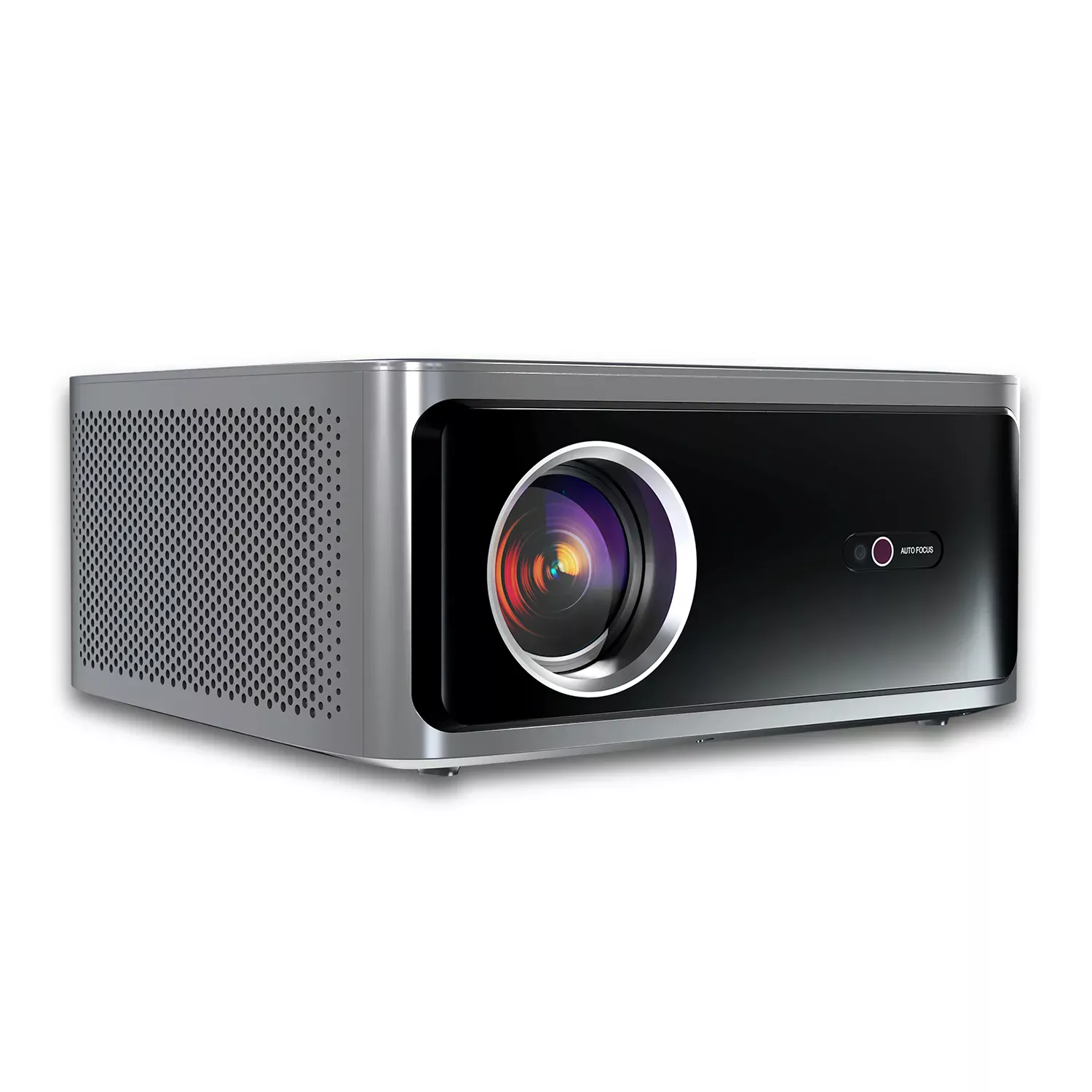
First Off, Why Bother with Rear Projection?
Before we dive into the “how,” let’s quickly cover the “why.” Front projection—the traditional method where the projector sits in the same room as the audience—is fantastic and what most people are familiar with. But rear projection has some killer advantages that make it the perfect solution in certain situations.
The Pros of a Rear Projection Setup:
- A Cleaner, Unobstructed View: This is the big one. All the equipment—the projector, cables, and streaming devices—is hidden behind the screen. This creates a minimalist, high-tech aesthetic.
- No More Shadows: Have you ever had someone get up for popcorn and cast a giant silhouette across the screen? With rear projection, people can move freely in front of the screen without ever blocking the light path. It’s a game-changer for parties, interactive presentations, or homes with kids and pets.
- Reduced Projector Noise and Heat: The projector is in a separate space (or a dedicated enclosure), so the fan noise and heat it generates are isolated from the viewing area.
- Enhanced Perceived Brightness: A good rear projection screen is designed to diffuse light directly towards the audience, which can make the image appear brighter and more vibrant, especially in rooms with some ambient light.
Of course, it’s not perfect for every scenario. The main drawback is the space requirement; you need dedicated depth behind the screen to house the projector. But if you have an adjacent closet, a spare room, or can build a dedicated enclosure, the results are simply stunning.
The Essential Gear for Your Rear Projection System
Getting this right starts with having the right tools for the job. You can’t just point your old projector at a bedsheet from behind and expect cinematic results. Here’s what you’ll actually need.
1. The Right Kind of Projector
While many modern projectors can handle rear projection, some features make them better suited for the task.
- Brightness (Lumens): Since the light has to pass through the screen material, you can lose some brightness. I generally recommend a projector with at least 3,000 ANSI lumens for a vibrant rear projection image, especially if you can’t achieve total darkness.
- Throw Distance: This determines how far behind the screen the projector needs to be to create a certain image size. A short-throw or ultra-short-throw (UST) projector can drastically reduce the amount of space you need, making rear projection possible even in tighter spots.
- Mirror Mode: This is the most critical feature. The projector must have a setting to horizontally flip the image. We’ll cover this in detail later, but without it, all text and logos will be backward. Most projectors from brands like Epson, BenQ, Optoma, and Sony have this feature, often labeled as “Rear Projection,” “Mirror,” or with a simple icon.
2. A Dedicated Rear Projection Screen
This is non-negotiable. You cannot use a standard front projection screen. Why? A front projection screen is designed to reflect light back to the audience. It’s typically opaque. A rear projection screen is specifically engineered to be translucent, allowing light to pass through it while diffusing it evenly to create a sharp, uniform image for the viewers on the other side. Using a regular screen or a DIY material will result in a dim, blurry “hot spot” where the projector bulb is and a terrible viewing experience.
3. Enough Space
This is the big logistical hurdle. You need an unobstructed line of sight from the projector lens to the screen, all happening behind the screen. The exact amount of space depends entirely on your projector’s throw ratio and desired screen size. For example, a projector with a 1.5:1 throw ratio needs to be 1.5 feet back for every 1 foot of screen width. For a 120-inch (10-foot wide) screen, that’s 15 feet of depth! This is why short-throw projectors are so popular for this application.
How to Set Up Rear Projection: The Step-by-Step Guide
Alright, you’ve got your gear and you’ve measured your space. It’s time to bring it all together. Let’s walk through the process of how to set up rear projection from start to finish.
- Plan and Position Your Screen: Your screen is the centerpiece. Decide exactly where it will be mounted. This could be in a custom-built wall, a large cabinet, or on a freestanding frame for a temporary event. This position is your fixed point; everything else will be aligned to it.
- Place Your Projector: Now, head to the space behind the screen. Place your projector on a stable table, shelf, or ceiling mount. It should be positioned so the lens is centered horizontally with the screen and at the correct vertical height (usually centered or aligned with the bottom/top edge, depending on the projector’s lens shift or offset).
- Power On and Connect a Source: Fire up the projector and connect a video source (like a laptop or streaming stick). You should see a backward, out-of-focus image on your screen. Don’t panic! This is normal. The goal here is just to get an image on the screen that fills it as much as possible. Adjust the projector’s distance and angle until the image roughly fits the screen’s dimensions.
- Activate Mirror Mode (The Magic Flip): This is the most crucial step. Grab your projector’s remote and navigate to the settings menu. You’re looking for an option under “Installation,” “Setup,” or “Display.” It will be called something like:
- Projection Mode: You’ll see options like Front-Desktop, Front-Ceiling, Rear-Desktop, Rear-Ceiling. Choose the rear option that matches your setup.
- Image Flip / Mirror: Sometimes it’s a simple toggle for Horizontal Flip.
Once you select this, the image will magically flip, and all the text will be readable from the audience’s side. Think of it like writing on a glass door; to someone on the other side, you have to write backward for them to read it correctly. The projector is doing that for you digitally.
- Fine-Tune Alignment, Focus, and Keystone: Now for the detailed work.
- Focus: Adjust the focus ring on the projector’s lens until the image is perfectly sharp. It’s helpful to have text or a detailed pattern on the screen for this.
- Zoom & Position: Use the projector’s zoom feature and physical adjustments to make the image fit the screen borders perfectly.
- Keystone Correction: If the screen is not perfectly perpendicular to the projector, the image may look like a trapezoid. Use the keystone correction to straighten the sides. A word of caution from a pro: use digital keystone sparingly. It can reduce image resolution and introduce artifacts. Physical alignment is always better.
“The golden rule of any high-end installation, especially rear projection, is to get the physical geometry right first. Rely on lens shift whenever possible and treat digital keystone as a last resort. A perfectly aligned projector will always deliver a superior image.” – John Carter, a Home Theater Installation Expert
Pro Tips for a Flawless Picture
You’ve got the basics down, but let’s add that professional polish.
- Control the Light Behind the Screen: The area behind the screen where the projector lives should be as dark as possible. Any stray light (from a window, a lamp, etc.) can bleed through the screen and wash out the image. Paint the walls and ceiling of the projector space a dark, matte color to prevent light from reflecting onto the back of the screen.
- Don’t Forget About Audio: Remember, the sound won’t come through the screen. You’ll need a separate sound system (a soundbar or a full surround sound setup) in the viewing room with your audience.
- The Mirror Trick for Tight Spaces: If you’re really tight on space, you can use a high-quality, first-surface mirror to bounce the image. This allows you to place the projector off to the side, effectively “folding” the throw distance and fitting a large image into a very shallow space. It requires precise alignment but is a common trick used by professional installers.
Rear Projection vs. Front Projection: Which Is for You?
Still on the fence? Here’s a quick comparison to help you decide.
| Feature | Front Projection | Rear Projection |
|---|---|---|
| Space | Requires space in the viewing room. | Requires dedicated space behind the screen. |
| Aesthetics | Projector and cables are visible. | All equipment is hidden for a clean look. |
| Obstructions | Prone to shadows from people walking by. | No shadows, completely unobstructed view. |
| Noise & Heat | Projector fan noise is in the room. | Noise and heat are isolated from the audience. |
| Setup Cost | Generally less expensive; standard screen. | Can be more expensive; requires a special screen and potentially construction. |
| Best For | Dedicated home theaters, multi-purpose rooms where flexibility is key. | High-end custom theaters, commercial displays, live events, situations where a clean look is paramount. |
Frequently Asked Questions (FAQ)
Q: Can I use a regular white wall or a bedsheet for rear projection?
A: No, you absolutely cannot. A wall or standard screen is opaque and will block most of the light, resulting in an incredibly dim and unusable image. You must use a screen specifically designed for rear projection that is translucent and diffuses light properly.
Q: How much space do I really need for a rear projection setup?
A: This depends entirely on your projector’s throw ratio and your desired screen size. Use an online “projection calculator” for your specific projector model to determine the exact distance required. A short-throw projector can create a 100-inch image from just a few feet away.
Q: Does rear projection reduce image quality or resolution?
A: When done correctly with the right screen, it does not reduce resolution (e.g., a 4K projector will still project a 4K image). However, you might experience a slight decrease in overall brightness compared to a high-gain front projection screen, which is why starting with a brighter projector is recommended.
Q: What is “hot-spotting” in rear projection?
A: Hot-spotting is when the area of the screen directly in front of the projector lens appears noticeably brighter than the rest of the screen, creating an uneven image. This is usually caused by using a low-quality screen material or having the projector too close for the screen’s diffusion properties.
Q: Is it difficult to learn how to set up rear projection?
A: It’s more about planning than difficulty. The steps themselves are straightforward, but success hinges on careful measurement and having the right equipment. If you follow the guide above, you’ll find it’s a very manageable and rewarding project.
Your Incredible, Invisible Cinema Awaits
Stepping into the world of rear projection can feel like unlocking a secret level in home entertainment. It’s the kind of setup that delivers a true “wow” factor, blending technology seamlessly into your living space. The key takeaways are simple: plan your space meticulously, invest in a proper rear projection screen, and remember to use your projector’s mirror mode.
By following this guide on how to set up rear projection, you’re not just putting up a screen; you’re creating an experience. An experience free of clutter, shadows, and distractions—leaving nothing but a stunning, brilliant image.
Have you tried a rear projection setup before? Share your experiences or ask any lingering questions in the comments below. We at Projector Cam are always here to help you achieve the perfect picture.