Few things are as frustrating as settling down to watch a movie, play a game, or start a presentation, only to be greeted by the dreaded “No Signal” message on your screen. This common HDMI issue can halt your plans dead in their tracks, leaving you wondering if your equipment is faulty or if you’ve missed a crucial step. As someone with over a decade of experience navigating the complexities of display technology, I understand this annoyance firsthand. Fortunately, most “no signal” problems aren’t catastrophic; they’re often simple glitches or overlooked settings that can be resolved with a methodical approach. This comprehensive guide will walk you through every troubleshooting step, from the simplest checks to more advanced solutions, ensuring you can quickly restore your HDMI connection and get back to what you were doing.
Understanding “No Signal”: What Does It Mean?
When your TV or monitor displays “No Signal,” it means that while the display device is powered on, it isn’t receiving a valid video and audio stream from the connected source device (like a gaming console, Blu-ray player, or computer) through the HDMI cable. This doesn’t necessarily indicate that any component is broken, but rather that the critical “handshake” process—where devices communicate to establish a proper connection—has failed at some point. For an HDMI connection to work seamlessly, the source must output video, any adapters must correctly process the signal, the cable must support the required bandwidth, and the display must be capable of accepting the signal format (resolution, refresh rate). A breakdown in any of these steps results in that frustrating blank screen.
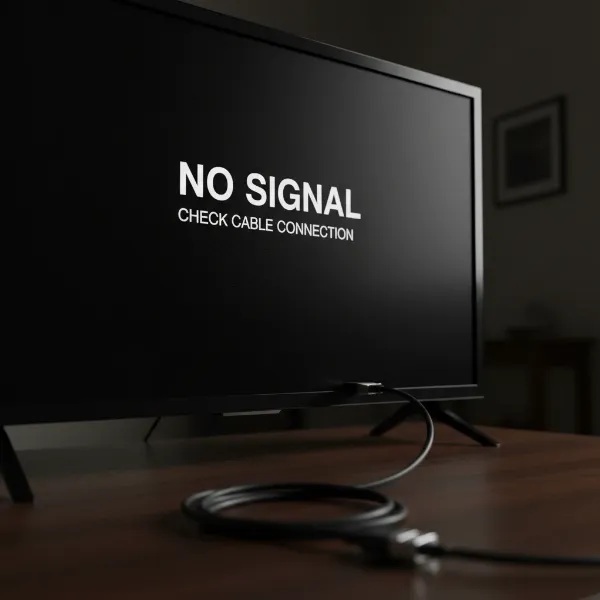 A TV screen displaying "No Signal" message with an HDMI cable connecting devices.
Initial Checks: The Simplest Solutions First
Before diving into complex diagnostics, it’s always wise to start with the most basic and common culprits. Many “no signal” issues are resolved by these simple, often overlooked checks.
The first step is to ensure your display is set to the correct input source. Modern TVs and monitors often have multiple HDMI ports, labeled HDMI 1, HDMI 2, and so on, alongside other inputs like AV or Component. Using your remote, press the “Input” or “Source” button and cycle through the options until you match the input to the port where your device is connected.
Next, verify that all devices involved are powered on. This includes your TV/monitor, the source device (e.g., PlayStation, Apple TV, PC), and any intermediate devices like receivers or HDMI switches. Look for indicator lights on each device to confirm they are active. It sounds obvious, but it’s a remarkably common oversight.
Finally, confirm all HDMI cable connections are secure. A slightly loose cable can easily disrupt the signal. Firmly unplug and then re-plug both ends of the HDMI cable—from the source device and into the display. Ensure they click into place or feel snug. Sometimes, just reseating the cable can re-establish the necessary digital handshake.
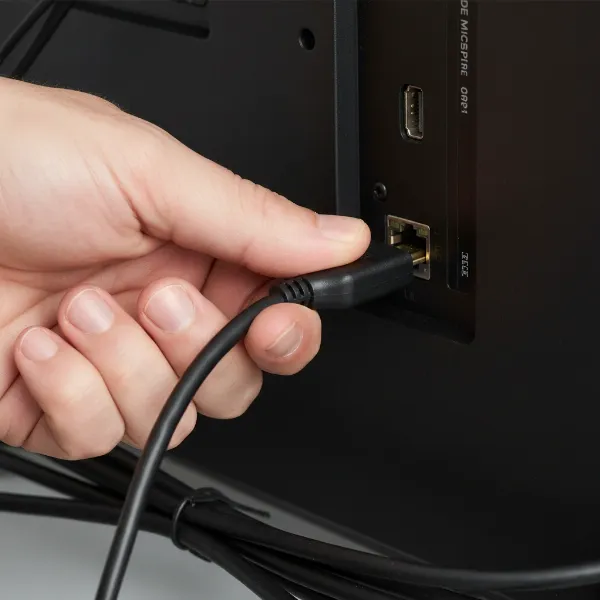 A hand checking a firmly connected HDMI cable into a port on a device.
Step-by-Step Troubleshooting for HDMI “No Signal”
If the initial checks don’t resolve the problem, it’s time to move to more systematic troubleshooting. Follow these steps sequentially to isolate and fix the issue.
Power Cycling Your Devices
|
Our Picks for the Best projector in 2026
As an Amazon Associate I earn from qualifying purchases.
|
||
| Num | Product | Action |
|---|---|---|
| 1 | [Officially-Licensed App & Auto Focus]Smart Mini Projector with WiFi and Bluetooth, XuanPad 4K Support Movie Projector, Portable Native 1080P Outdoor Projector with 360° Stand |
![Check [Officially-Licensed App & Auto Focus]Smart Mini Projector with WiFi and Bluetooth, XuanPad 4K Support Movie Projector, Portable Native 1080P Outdoor Projector with 360° Stand on Amazon](https://projectorcam.com/wp-content/plugins/amazon-tables/assets/images/buy.png)
|
| 2 | Magcubic Mini Projector with WiFi 6 and Bluetooth 5.4, Portable Projector 4K Support, 5W Soundbase Speaker, Auto Vertical Keystone 180°Rotatable Smart Proyector for Movie Home Outdoor |
|
| 3 | [Built-in Official Apps/4K Support] Smart Outdoor Projector with WiFi and Bluetooth, 800ANSI Movie Projector, DoIby Audio with Dual Speaker, Auto Focus w/ YouTube&PrimeVideo Proyector, Upgrad P62 Pro |
|
| 4 | Astronaut Galaxy Projector with Bluetooth Speaker & White Noise, App & Remote Control Star Projector, Galaxy Projector for Bedroom Adults Kids, Spaceman Night Light for Gaming Room, Home Theater |
|
| 5 | 【Officially-Licensed APP & Native 1080P】Thinnest 1.81\" Smart Mini Projector with WiFi and Bluetooth, Auto Focus & Keystone Portable Outdoor Projector, VOPLLS 4K Support Home Movie Projector |
|
| 6 | Projector-4K with WiFi and Bluetooth:[3000 ANSI/40W Dolby Audio/Official Licensed Apps], Outdoor-Projector with Smart OS 2.0 & AI Auto Focus,ONOAYO ONO5Pro 2.0 Smart Movie Projector for Indoor/Outdoor |
|
| 7 | Mini Smart Projector, 1500 ANSI Portable Projector with WiFi and Bluetooth, HAPPRUN 4K Full HD Home Theater with 270° Stand, Dolby Sound, Built-in Apps,Compatible with Phone & PC, Indoor & Outdoor Use |
|
| 8 | Aurzen Roku TV Smart Projector with Wifi and Bluetooth, Roku Streaming Experience Built-in, 1080P FHD, Dolby Audio, Auto Focus & Keystone, Zoom, Movie Portable Outdoor Mini Projector, White |
|
| 9 | HAPPRUN Native 1080P Bluetooth Mini Projector, Full HD Portable Outdoor Movie Projector with Built-in Speaker, Compatible with Smartphone, HDMI, USB, AV, Fire Stick, PS5 for Home, Bedroom, Outdoor Use |
|
| 10 | Mini Projector with Built-in Rechargeable Battery for Outdoor, Portable Projector with WiFi and Bluetooth, 4K Projector for Bedroom, Smart Projector |
|
A simple power cycle can often clear temporary glitches in device memory or communication. This is a fundamental troubleshooting step for almost any electronic problem.
To power cycle effectively, first turn off all connected devices (TV, source, receiver). Then, unplug each device completely from its power outlet. Wait for at least 30 to 60 seconds to allow any residual power to drain and internal systems to fully reset. Finally, plug everything back in and power them on. Start with the source device, then any intermediate devices, and finally the TV or monitor. This often re-initiates the HDMI handshake cleanly.
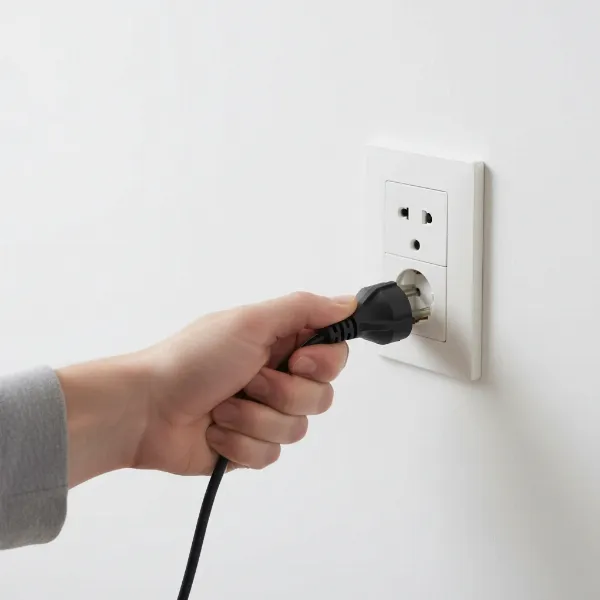 Unplugging a power cable from a wall socket to power cycle devices.
Inspecting and Swapping HDMI Cables
HDMI cables can wear out, kink, or simply be manufactured poorly, leading to intermittent or complete signal loss. The cable itself is a very common point of failure.
Inspect your current HDMI cable for any visible damage, such as frayed wiring, bent pins on the connectors, or severe kinks along its length. If you find any damage, replace it immediately. Even if it looks fine, it might be internally damaged.
The best way to rule out a faulty cable is to try a different HDMI cable. If you have a spare cable that you know works, use that. If not, consider borrowing one or purchasing an affordable replacement. High-quality cables, especially those certified for modern standards (like HDMI 2.0 or 2.1), are generally more reliable, particularly for higher resolutions and refresh rates.
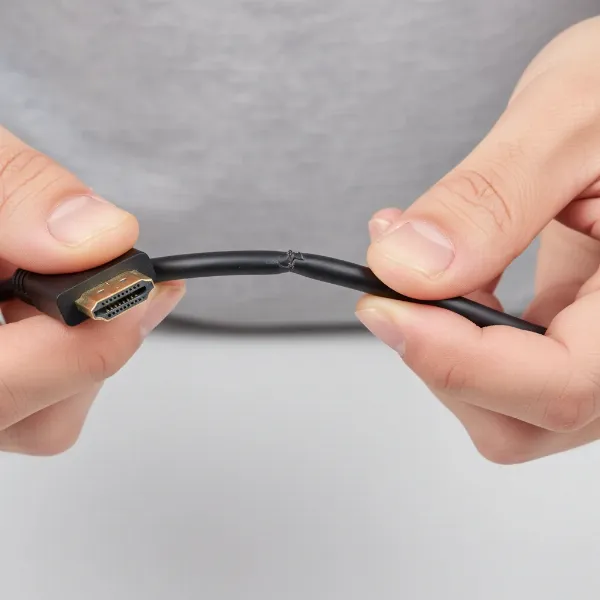 A person inspecting an HDMI cable for damage or bends.
Trying Different HDMI Ports
HDMI ports on your display or source device can sometimes become faulty or incompatible. Testing other ports helps determine if the issue is with a specific port rather than the device itself.
First, try plugging your HDMI cable into a different port on your TV or monitor. Remember to switch your display’s input source to match the new port you’re using. If a different port works, the original port might be damaged. Similarly, if your source device (like a graphics card on a PC) has multiple HDMI outputs, try a different output port on that device. This can help identify if a specific port on the source is the problem. Some ports may also have different specifications (e.g., one HDMI 2.1 port and several HDMI 2.0 ports), and a mismatch with your device’s output can cause issues.
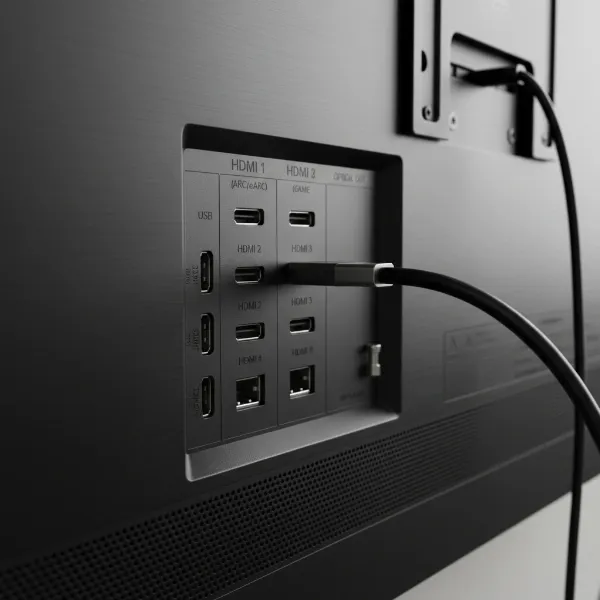 Multiple HDMI ports on the back of a TV, with one cable plugged in.
Adjusting Source Device Settings
Sometimes, the “no signal” error occurs because the source device is trying to output a signal that the display cannot support. This is common when connecting a new device or after a software update.
Access the display settings on your source device. If you can’t see anything on your main display, you might need to connect it to another known-working display temporarily, or boot your device into “safe mode” or a low-resolution mode if available (e.g., on a PC or some consoles). Reduce the resolution to a lower setting, such as 1080p (1920×1080) or even 720p (1280×720), and lower the refresh rate (e.g., to 60Hz). If the signal appears, you can then gradually increase the resolution and refresh rate until you find the maximum supported by both devices.
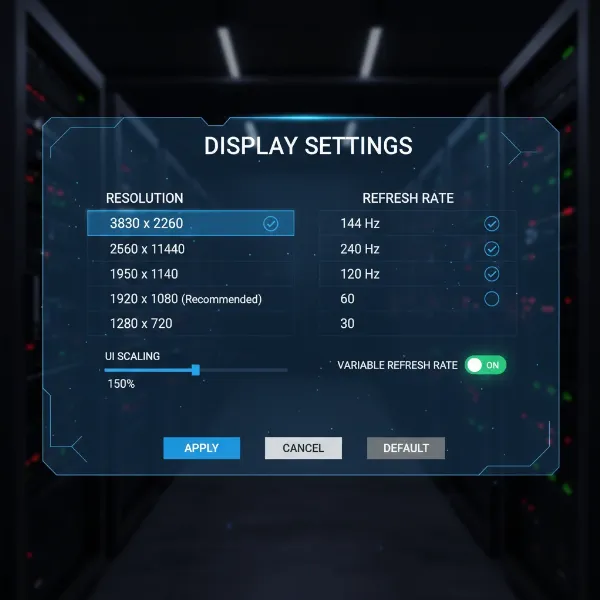 A user navigating settings menu on a gaming console or computer to adjust display output.
Addressing Adapter and Hub Problems
In today’s diverse tech landscape, many users rely on adapters or USB-C hubs to convert signals to HDMI. These can be significant points of failure.
If you’re using a USB-C to HDMI adapter or a docking station, carefully consider its compatibility and quality. Many “no signal” problems arise from cheap or incompatible adapters that don’t support the required bandwidth or signal protocols. Ensure your adapter is rated for the resolution and refresh rate you’re trying to achieve (e.g., 4K at 60Hz requires a robust adapter). Try connecting directly without the adapter if possible, or test with a different, higher-quality adapter. Issues can also stem from the USB-C port itself, as some ports on devices may have limited video output capabilities.
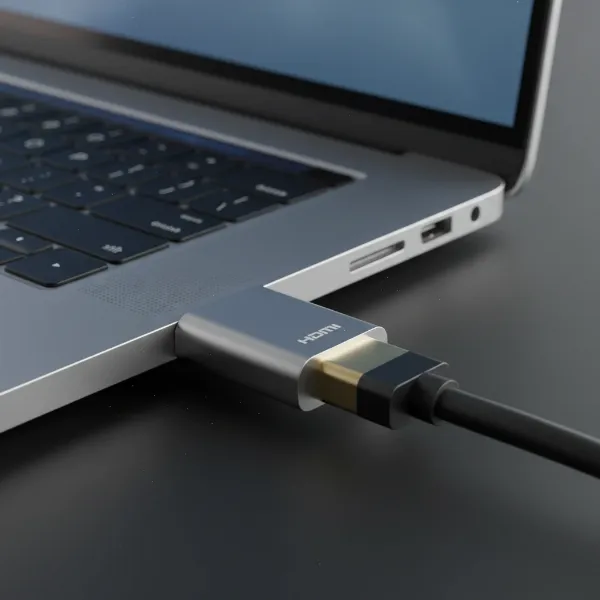 A USB-C to HDMI adapter connected to a laptop.
Checking for HDCP and EDID Handshake Issues
HDMI relies on complex communication protocols like HDCP (High-bandwidth Digital Content Protection) and EDID (Extended Display Identification Data) to ensure secure content delivery and proper display detection. When these “handshakes” fail, you get a “no signal” message.
HDCP is a copy protection scheme that can prevent displays from showing content if it detects an unauthorized connection or an incompatible device in the chain. EDID allows the source device to detect the display’s capabilities (supported resolutions, refresh rates, etc.). Problems here often manifest as intermittent signal loss or a complete “no signal” error. Often, a power cycle of all devices can reset the HDCP/EDID handshake. In some cases, updating device firmware or trying a different HDMI input or cable can help bypass these communication issues.
Advanced Troubleshooting and Hardware Considerations
If basic and intermediate steps haven’t worked, you might be dealing with less common issues or potential hardware faults.
An outdated TV firmware can sometimes cause HDMI compatibility problems. Check your TV’s settings menu for a “Software Update” or “Firmware Update” option. Ensure your TV is connected to the internet and install any available updates. This can resolve known bugs related to HDMI communication.
For very long HDMI cable runs (typically over 15-20 feet), signal degradation can occur, leading to a “no signal” issue. In such cases, you might need an HDMI repeater or extender kit. These devices boost the HDMI signal to ensure it travels the longer distance without loss of quality. Active optical HDMI cables are another solution for long runs, as they use fiber optics for reliable transmission.
Finally, if after all these steps you still have no signal, it’s possible that an HDMI port on your display or source device is physically faulty, or the internal components responsible for HDMI processing have failed. This could be due to physical damage or a manufacturing defect.
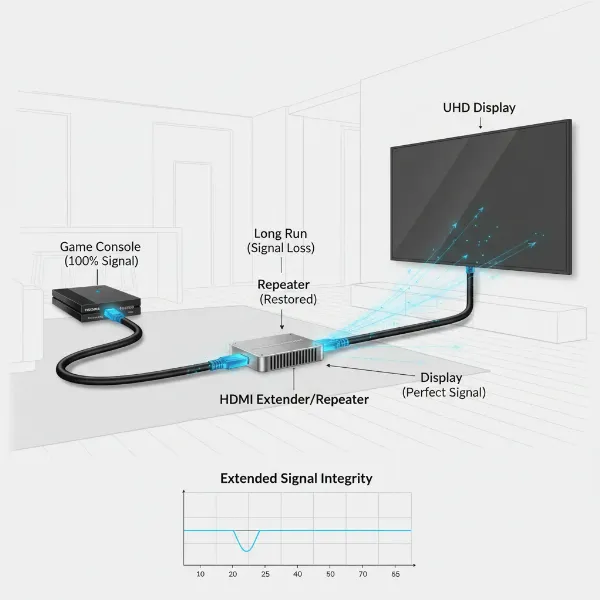 A long HDMI cable connected with a repeater or extender device.
Preventing Future HDMI “No Signal” Issues
While frustrating, “no signal” issues are often avoidable with good practices. Consider these tips to minimize future occurrences:
- Use High-Quality Cables: Invest in reliable HDMI cables, especially for critical connections or longer runs. Certified cables ensure proper signal integrity.
- Keep Firmware Updated: Regularly check for and install firmware updates for your TVs, monitors, streaming devices, and gaming consoles. Manufacturers often release updates that improve HDMI compatibility and resolve bugs.
- Proper Connection Habits: Always turn off devices before connecting or disconnecting HDMI cables to prevent potential electrical surges or communication errors. Avoid bending cables sharply or putting strain on ports.
- Organize Your Setup: Good cable management can prevent accidental disconnections and reduce physical stress on cables and ports.
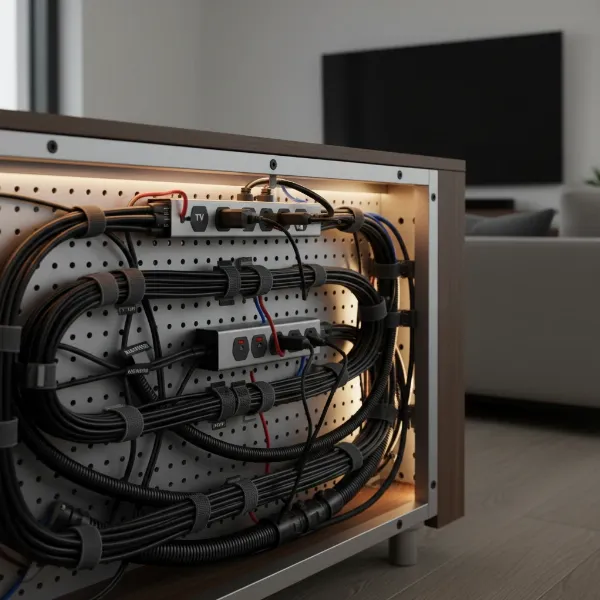 Organized HDMI cables behind an entertainment system.
When to Seek Professional Help
After trying all the troubleshooting steps, if your HDMI connection still shows “No Signal,” it’s likely that a hardware component has failed. This could be the HDMI port on your TV or source device, or an internal board. At this point, it’s advisable to:
- Contact the manufacturer’s support: They may have specific diagnostics or repair options.
- Consult a professional technician: A qualified repair shop can diagnose and potentially fix hardware issues.
- Consider replacement: If the device is old or repairs are too costly, it might be more economical to replace the faulty component or the entire device.
Conclusion
Encountering a “No Signal” message on your HDMI connection can be a significant headache, but it’s rarely a problem without a solution. By systematically working through the troubleshooting steps – from checking basic connections and power to power cycling devices, swapping cables and ports, and adjusting settings – you can resolve the vast majority of these issues. Remember that patience and a methodical approach are your best tools. With a little diligence, you can quickly restore your display and enjoy uninterrupted entertainment or productivity. What was your most challenging “no signal” fix, and how did you resolve it?
Frequently Asked Questions
Why does my TV say “No Signal” even with a new HDMI cable?
Even with a new HDMI cable, your TV might show “No Signal” due to an incorrect input source, the source device not being powered on, a faulty HDMI port on either the TV or source, or an incompatibility in resolution or refresh rate settings. Always check the input selection first, then power cycle both devices, and try different ports on your TV.
Can a bad HDMI port cause “No Signal”?
Yes, a faulty HDMI port on either your TV or the source device is a common cause for a “No Signal” message. Ports can become damaged physically or experience internal electronic failures. Trying a different HDMI port on both devices can help determine if a specific port is the root of the problem.
How do I reset my TV to fix HDMI issues?
To reset your TV and potentially fix HDMI issues, perform a power cycle: unplug your TV from the wall outlet, wait for at least 30-60 seconds, then plug it back in. This clears temporary software glitches. Some TVs also have a factory reset option in their settings, which can resolve deeper software-related problems.
Why is my laptop saying “No Signal” when connected to a monitor via HDMI?
If your laptop displays “No Signal” on an external monitor, ensure the monitor is on the correct input. Check if the laptop’s display output is enabled (often a function key combination like Fn+F4 or Fn+F8) and that the display settings are compatible with the monitor’s supported resolutions. Also, test with a different HDMI cable and port.