Ever dreamed of having your own movie theater? That giant, immersive screen that pulls you right into the action. Well, you’re halfway there with that new projector. But a blank wall, no matter how big, isn’t very entertaining. The real magic happens when you unlock a universe of content. That’s where Connecting A Fire Stick Or Chromecast To A Projector comes in, turning your device from a business tool into a full-blown entertainment powerhouse.
It sounds simple, and honestly, it mostly is. But as with any tech setup, a few little gremlins can pop up, especially around power and sound. Don’t you worry. Here at Projector Cam, we live and breathe this stuff. I’ve set up more home theaters than I can count, and I’m here to walk you through every step, from the “Aha!” moment of plugging it in to troubleshooting those pesky issues that can ruin movie night. Let’s get you streaming on the big screen.
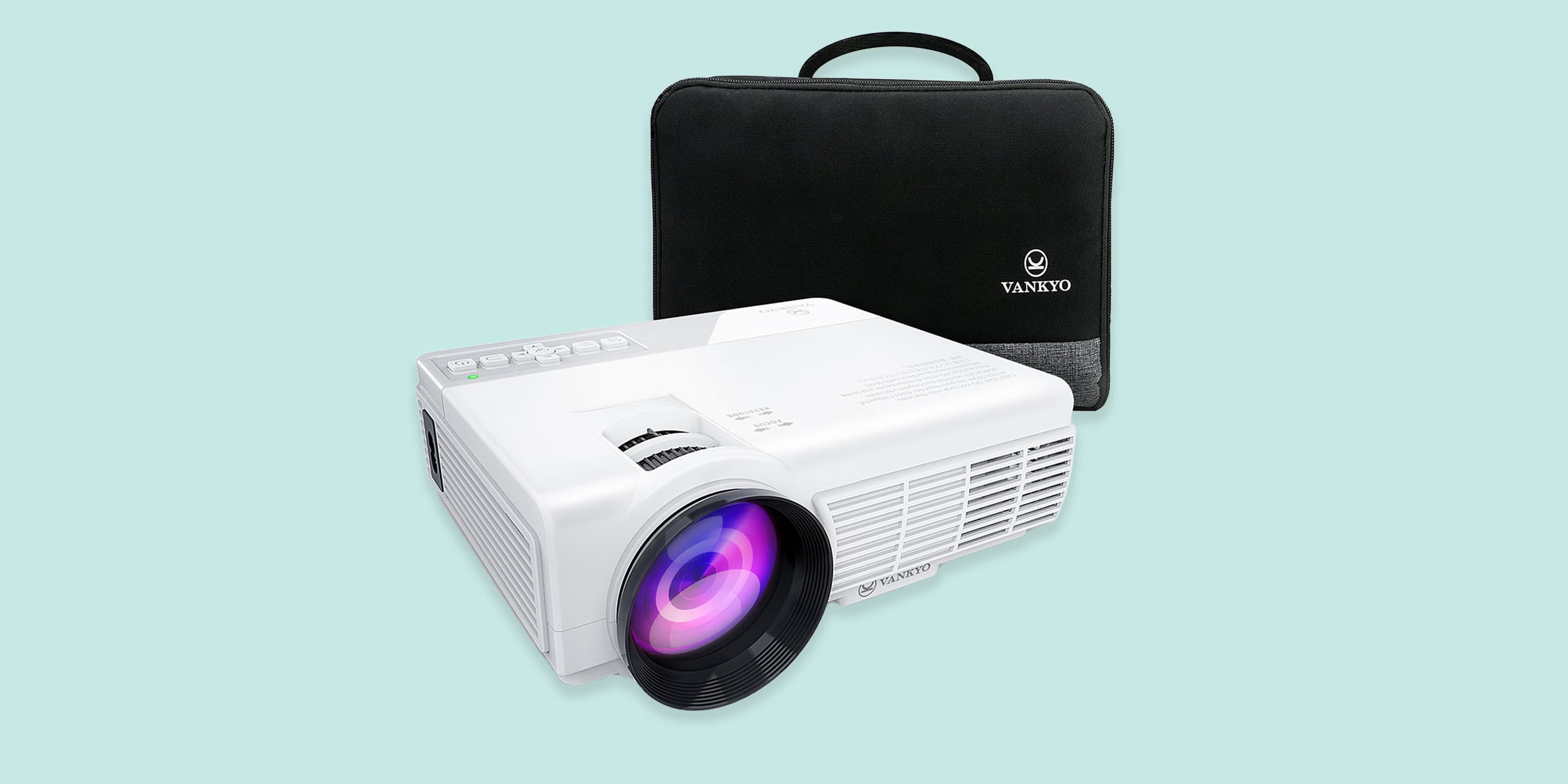
First Things First: What You’ll Actually Need
Before we dive in, let’s do a quick gear check. Think of this as your pre-flight checklist for cinematic bliss. You won’t need much, but having everything ready will make the process a whole lot smoother.
- Your Projector: The star of the show, obviously!
- Your Streaming Stick: An Amazon Fire TV Stick, a Google Chromecast with Google TV, or a similar device.
- A Power Source: Both your projector and your streaming stick need juice. This is more important than you think, and we’ll circle back to it.
- A Solid Wi-Fi Connection: Streaming sticks are Wi-Fi hungry. Make sure your router is within range and provides a stable signal.
- An Audio Solution (Highly Recommended): We need to talk about sound. While most projectors have built-in speakers, they’re often… well, let’s just say they won’t be winning any awards. A soundbar, Bluetooth speaker, or home theater receiver will elevate your experience from “watching a movie” to “living it.”
The Main Event: A Step-by-Step Guide to Connecting Your Stick
Alright, you’ve got your gear. Let’s make the magic happen.
- Locate the HDMI Port: Grab your projector and look for the input panel. You’re searching for an HDMI port. It’s a distinctive, trapezoid-shaped port. Most modern projectors have at least one, and many have two or more. This is the digital superhighway that carries both your picture and sound.
- Plug In Your Streaming Stick: Simply plug your Fire Stick or Chromecast directly into an available HDMI port on the projector. It’s a snug fit, so be gentle but firm.
- Provide Power to the Stick: This is the step where most people trip up. Your streaming stick needs power to operate. You have two main options:
- Use the Included Power Adapter: This is the most reliable method. Plug the USB cable that came with your stick into the included wall adapter and plug it into a power outlet.
- Use the Projector’s USB Port: Many projectors have a USB-A port (the rectangular kind). Some of these are labeled “Power” or “5V/1A” and can provide enough electricity to power your streaming stick. However, not all USB ports on projectors are powered sufficiently. If you experience random reboots or warning messages, the projector’s USB port isn’t cutting it, and you need to switch to the wall adapter.
- Power On and Switch the Input Source: Turn on your projector. It might not automatically show the Fire Stick or Chromecast screen. You’ll need to tell the projector which “channel” to listen to. Use your projector’s remote to find the
InputorSourcebutton. Press it and cycle through the options (HDMI 1, HDMI 2, etc.) until you land on the one your stick is plugged into. - Connect to Wi-Fi and Log In: Voila! You should now see the Fire Stick or Chromecast setup screen. From here, just follow the on-screen instructions using the stick’s remote. You’ll connect to your home Wi-Fi network and log into your Amazon or Google account.
- Solve the Audio Puzzle: Now, for the final piece. As I mentioned, your projector’s built-in speaker might be a letdown. Let’s get that cinema-quality sound.
- 3.5mm Audio Out: Many projectors have a headphone jack-style “Audio Out” port. You can run a cable from here to a soundbar or a set of powered computer speakers. Simple and effective.
- Bluetooth: This is the easiest wireless option. Both Fire Sticks and Chromecasts with Google TV can connect directly to Bluetooth speakers or soundbars. Just go into the device’s settings menu (
Settings>Controllers & Bluetooth Deviceson Fire Stick) and pair your speaker. - HDMI ARC (Audio Return Channel): If your projector and soundbar/receiver both support HDMI ARC, you can use a single HDMI cable to handle everything. This is a bit more advanced but offers the highest quality.
- HDMI Audio Extractor: If your projector has no audio outputs, this little magic box splits the audio from the HDMI signal, allowing you to send it to a separate sound system.
Troubleshooting Common Glitches
Hit a snag? It happens. Here are the most common issues I see when connecting a Fire Stick or Chromecast to a projector and how to fix them.
Why is there no picture on the screen?
First, double-check that your projector is set to the correct HDMI input source. If that’s correct, the issue is likely power. Ensure your streaming stick is getting enough juice—try switching from the projector’s USB port to the dedicated wall adapter.
Why can’t I hear any sound?
This is usually a settings issue. First, make sure the projector’s volume isn’t muted. If you’re using Bluetooth, go into your streaming stick’s settings and confirm it’s connected to your speaker. If you’re using a wired connection, ensure the cables are plugged in securely to the “Audio Out” port.
The screen is flickering or showing an HDCP error. What gives?
“HDCP, or High-bandwidth Digital Content Protection, is essentially a digital handshake between your streaming device and your display. If that handshake fails, you get a blank or flickering screen. This often happens with older projectors or cheap, uncertified HDMI cables.” – John Carter, a Home Theater Installation Expert.
To fix this, try a different HDMI port on the projector or a different, high-quality HDMI cable. In rare cases, the projector itself may not be fully HDCP compliant with the newest streaming sticks.
Choosing the Best Projector for Streaming
While you can connect a streaming stick to almost any projector with an HDMI port, some models just make life easier. If you’re in the market for a new one, here’s what to look for.
What resolution do I need for a Fire Stick or Chromecast?
Get a projector with a native resolution that matches your streaming goals. If you have a 4K Fire Stick, you’ll want a native 4K projector to get the full, pixel-perfect experience. For a standard HD stick, a projector with a native resolution of 1080p (Full HD) is the sweet spot for crisp, clear images without breaking the bank.
Bảng trống.How many lumens are enough for home streaming?
Lumens measure the brightness of your projector. For a dedicated, dark home theater room, 1,500-2,000 lumens is plenty. If you plan to watch with some ambient light, like during the day with the curtains drawn, aim for 2,500-3,500 lumens or more. This ensures the image doesn’t look washed out.
Smart Projector vs. “Dumb” Projector + Streaming Stick?
Many projectors now come with “smart” operating systems built-in, like Android TV. While convenient, they often have slower processors and fewer app updates than a dedicated Fire Stick or Chromecast. My personal recommendation? Get a great “dumb” projector with fantastic image quality and invest in a separate, top-of-the-line streaming stick. It’s cheaper to upgrade a $50 stick every few years than a $1000+ projector.
Frequently Asked Questions (FAQ)
Q: Can I power a Chromecast directly from any projector’s USB port?
A: Not always. While many projectors have a powered USB port, it might not provide the stable wattage a Chromecast (especially the 4K version) requires. The safest and most reliable method is to use the power adapter that came with your Chromecast.
Q: Do I absolutely need a 4K projector for a 4K Fire Stick?
A: No, you don’t need one, but it’s highly recommended for the best quality. A 4K Fire Stick will still work on a 1080p projector; the projector will simply downscale the 4K signal to fit its 1080p display. You’ll still get a great picture, just not a true 4K one.
Q: How do I get Netflix in 4K on my projector setup?
A: To get 4K streaming, you need four things to line up: a 4K streaming stick (like the Fire TV Stick 4K Max), a native 4K projector, a Netflix subscription plan that includes Ultra HD, and a fast enough internet connection (Netflix recommends 15 Mbps or higher).
Q: My projector and Fire Stick are far from my router. What can I do?
A: A weak Wi-Fi signal will lead to buffering and low-quality streams. Consider moving your router closer, or invest in a Wi-Fi mesh system or a Wi-Fi extender to boost the signal in your theater room.
Q: Can I control my soundbar’s volume with my Fire Stick remote?
A: Yes, in most cases! The Fire Stick remote can be programmed to control the power and volume of many popular soundbars and A/V receivers. During setup, the Fire Stick will walk you through pairing the remote with your audio device.
Your Home Theater Awaits
And there you have it. You’re now fully equipped with the knowledge to transform your living room, basement, or even your backyard into an epic entertainment hub. The process of connecting a Fire Stick or Chromecast to a projector is your gateway to endless nights of blockbuster movies, binge-worthy TV shows, and big-screen gaming.
It’s all about getting those few key connections right: HDMI for the picture, a reliable source for power, and a good setup for sound. Once you have that sorted, the only thing left to do is pop some popcorn, dim the lights, and decide what to watch first.
Have you set up your own projector theater? Share your experience or ask any lingering questions in the comments below! We love to see how you’re bringing the big screen home.