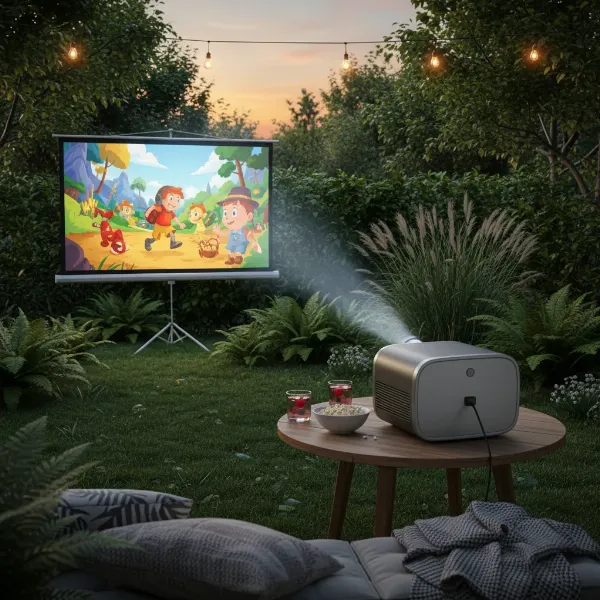
Projectors offer a truly immersive visual experience, transforming any space into a personal cinema or presentation hub. Yet, for many, the built-in sound often falls short, leaving visuals vibrant but audio flat. Imagine settling in for a blockbuster movie, only to find the epic soundtrack muffled, or important dialogue lost in the hum of the projector fan. The truth is, the compact nature of most projectors means their integrated speakers simply can’t deliver the rich, dynamic audio quality that a large-screen experience demands.
This limitation doesn’t mean you’re stuck with subpar sound. Fortunately, a world of enhanced audio solutions awaits, ready to bring your projector’s sound up to par with its stunning visuals. This comprehensive guide will walk you through the most effective methods to improve your projector’s audio, with a specific focus on the convenience of Bluetooth and the high-fidelity capabilities of HDMI ARC, ensuring your auditory experience is as captivating as your visual one.
Understanding Projector Audio Limitations
Why do projector speakers often disappoint? It primarily comes down to physics and design constraints. To maintain their compact form factor, projectors are equipped with tiny, low-wattage speakers that simply lack the power and frequency range to produce robust sound. These small drivers struggle to reproduce deep bass notes or crisp highs, resulting in a narrow sound profile that feels unengaging. Furthermore, the internal cooling fans, essential for projector operation, can generate noticeable noise, forcing you to compete with a constant whir to hear dialogue or subtle sound effects. This combination often leads to muffled audio, a lack of immersive depth, and a generally unsatisfying listening experience, especially in larger rooms or outdoor settings.
Key Technologies for Enhanced Projector Sound
To truly unlock your projector’s audio potential, connecting to external sound systems is essential. Two of the most popular and versatile methods involve leveraging Bluetooth for wireless convenience and HDMI ARC for superior digital audio transmission.
Bluetooth Connectivity for Wireless Audio
|
Our Picks for the Best projector in 2026
As an Amazon Associate I earn from qualifying purchases.
|
||
| Num | Product | Action |
|---|---|---|
| 1 | Aurzen Roku TV Smart Projector with Wifi and Bluetooth, Roku Streaming Experience Built-in, 1080P FHD, DoIby Audio, Auto Focus & Keystone, Zoom, Movie Portable Outdoor Mini Projector, White |

|
| 2 | [Built-in Official Apps/4K Support] Smart Outdoor Projector with WiFi and Bluetooth, 800ANSI Movie Projector, DoIby Audio with Dual Speaker, Auto Focus w/ YouTube&PrimeVideo Proyector, Upgrad P62 Pro |
|
| 3 | Projector-4K with WiFi and Bluetooth:[3500 ANSI/60W Dolby Audio/Official Licensed Apps], Outdoor-Projector with Smart OS 2.0 & AI Auto Focus,ONOAYO ONO5Pro 2.0 Smart Movie Projector for Indoor/Outdoor |
|
| 4 | 【Official Licensed Google TV】4K Smart Projector with WiFi and Bluetooth, VOPLLS Outdoor Projectors with Dolby/Auto Focus, Portable Movie Phone Wireless Gaming Wifi Proyector for Bedroom/Home/Celling |
|
| 5 | Epson Pro EX9270 Wireless 1080p 3LCD Projector 4,100 Lumens Color and White Brightness, Apple AirPlay, Miracast, Stream from Phone or Laptop, 2 HDMI Ports, 1.6x Optical Zoom, Built-In Speaker |
|
| 6 | 1500 ANSI Official Licensed Google TV Smart Projector, HAPPRUN 4K Full HD Home Theater with Auto Focus, Dolby Sound, Wi-Fi Bluetooth, Built-in Apps, Compatible with Phone & PC, Indoor & Outdoor Use |
|
| 7 | 【Officially-Licensed APP & Native 1080P】Thinnest 1.81\" Smart Mini Projector with WiFi and Bluetooth, Auto Focus & Keystone Portable Outdoor Projector, VOPLLS 4K Support Home Movie Projector |
|
| 8 | Epson Pro EX11000 3-Chip 3LCD Full HD 1080p Wireless Laser Projector, 4,600 Lumens Color/White Brightness, Miracast, 2 HDMI Ports, USB Power for Streaming, Built-in 16W Speaker |
|
| 9 | [3500 ANSI/ Official Apps/65W Audio] Outdoor 4K Projector with WiFi and Bluetooth, Auto Focus, Auto Keystone Smart Projector Support DoIby Audio, 2026 Upgrade GO2 Short Throw Projector with 360°Stand |
|
| 10 | HAPPRUN Native 1080P Bluetooth Mini Projector, Full HD Portable Outdoor Movie Projector with Built-in Speaker, Compatible with Smartphone, HDMI, USB, AV, Fire Stick, PS5 for Home, Bedroom, Outdoor Use |
|
Bluetooth offers a straightforward and often cable-free way to connect your projector to external speakers or headphones. This wireless standard is ideal for those seeking flexibility, portability, and a clutter-free setup, transforming casual viewing into a more engaging experience. Whether you’re moving your projector from room to room or taking it outdoors, Bluetooth provides a convenient solution for instant audio enhancement.
Checking Compatibility
Before you begin, ensure both your projector and your desired audio device (Bluetooth speaker, soundbar, or headphones) are Bluetooth-enabled. Most modern projectors come with built-in Bluetooth capabilities. If your projector lacks this feature, a Bluetooth audio transmitter can be plugged into its 3.5mm audio output or USB port, effectively adding wireless functionality.
Step-by-Step Pairing Guide
Connecting your projector to a Bluetooth speaker is typically a simple process:
- Enable Bluetooth on Both Devices: Turn on your Bluetooth speaker and put it into pairing mode. This usually involves pressing and holding a dedicated Bluetooth button until an indicator light flashes or an audible prompt is heard. Simultaneously, navigate to your projector’s settings menu and ensure Bluetooth is activated.
- Search for Available Devices: On your projector, access the Bluetooth settings. It will typically begin scanning for nearby discoverable devices.
- Select and Connect: From the list of found devices, select your Bluetooth speaker’s name. The projector will then initiate the pairing sequence.
- Confirm Pairing: You may be prompted to confirm the connection or enter a PIN on some devices. Once paired, the projector’s internal speakers will usually mute, and audio will be routed to your external Bluetooth device.
- Configure Audio Output: In your projector’s audio settings, verify that the Bluetooth output is selected as the primary audio source.
Addressing Potential Issues
While highly convenient, Bluetooth connections can sometimes present challenges:
- Latency and Audio-Video Sync: One common issue is a slight delay between the video and audio, often referred to as “lip sync” issues. This occurs because wireless transmission takes a fraction longer than wired connections. Many projectors include an “Audio Delay” or “Lip Sync” adjustment in their settings to help correct this.
- Range Limitations: Bluetooth has a limited effective range, usually around 30 feet (10 meters). Moving speakers too far from the projector or encountering physical obstructions can lead to signal drops or degraded audio quality.
- Loss of Quality: While modern Bluetooth standards have improved, they still involve compression, meaning audio quality might not be as pristine as with a direct wired connection or HDMI ARC. For critical listening or high-fidelity audio, wired options may be preferable.
Bluetooth is an excellent choice for casual viewing, outdoor movie nights, or situations where wire management is a priority, offering a significant upgrade over built-in projector speakers with minimal fuss.
HDMI ARC for High-Quality Digital Audio
For those seeking a more integrated and higher-fidelity audio solution, especially for home theater setups, HDMI ARC (Audio Return Channel) is a game-changer. It simplifies connections and enhances sound quality by allowing audio signals to travel both ways over a single HDMI cable between your projector and a compatible sound system (such as a soundbar or AV receiver). The newer eARC (Enhanced Audio Return Channel) takes this a step further, offering even greater bandwidth to support uncompressed, high-bitrate audio formats like Dolby Atmos and DTS:X, delivering a truly cinematic sound experience.
Benefits of HDMI ARC
- Single Cable Solution: HDMI ARC drastically reduces cable clutter. Instead of needing separate HDMI for video and an optical or RCA cable for audio, one HDMI cable handles both.
- High-Quality Audio: ARC supports digital audio transmission, including multichannel formats up to 5.1, while eARC can handle advanced formats like Dolby Atmos, providing richer, more dynamic sound.
- Simplified Control (CEC): HDMI Consumer Electronics Control (CEC) often works in conjunction with ARC, allowing you to control multiple devices (like your projector and soundbar) with a single remote.
Checking Compatibility
To use HDMI ARC, both your projector and your external audio device (soundbar or AV receiver) must have an HDMI port specifically labeled “ARC” or “eARC.” On projectors, this is typically an “HDMI IN (ARC)” port, while on sound systems, it might be labeled “HDMI OUT (TV-ARC)” or similar.
Step-by-Step Connection Guide
Connecting via HDMI ARC is straightforward:
- Use a High-Speed HDMI Cable: Ensure you are using a certified High-Speed HDMI cable (version 1.4 or higher). For 4K 60fps video signals or eARC’s full capabilities, an Ultra High-Speed HDMI cable (HDMI 2.0 or 2.1 rated) is recommended to prevent display issues.
- Connect ARC Ports: Plug one end of the HDMI cable into the designated “HDMI ARC” or “HDMI eARC” port on your projector. Connect the other end into the corresponding “HDMI ARC” or “HDMI eARC” port on your soundbar or AV receiver.
- Connect Video Sources: If you have external video sources (like a Blu-ray player, streaming stick, or gaming console), connect them to the other non-ARC HDMI input ports on your projector. Alternatively, for more advanced setups, you can connect all your video sources directly to your AV receiver, and then run a single HDMI ARC cable from the receiver’s ARC output to the projector’s ARC input.
- Enable ARC/CEC Settings: Access the settings menu on both your projector and your sound system. Enable the “HDMI ARC” or “eARC” function, and also look for and enable any related “CEC” (Consumer Electronics Control) settings, often named differently by manufacturers (e.g., HDMI Link, Anynet+, Bravia Sync).
- Adjust Projector Audio Output: In your projector’s audio settings, select “HDMI ARC” or the appropriate HDMI input as the audio output. You might also find options like “RAW+” or “Audio Return+” which ensure proper format compatibility for surround sound.
- Test Your Setup: Play some content and confirm that the audio is now playing through your external sound system. Make any necessary volume adjustments.
HDMI ARC provides a robust and high-quality audio solution, perfect for creating a more permanent and immersive home theater environment with fewer cables and integrated control.
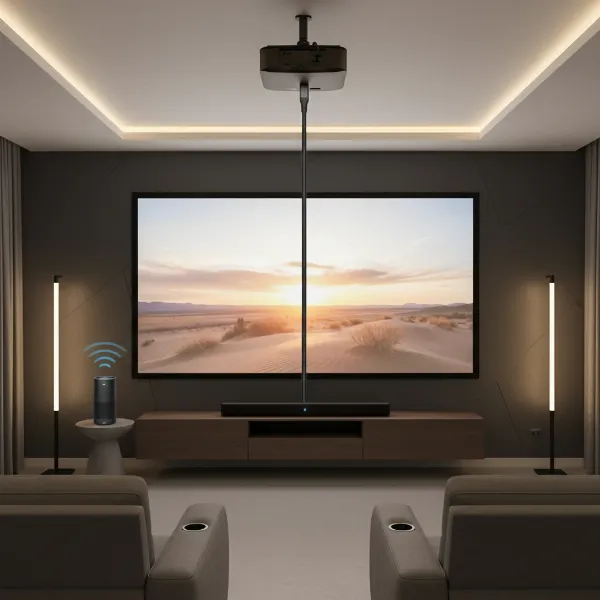 A projector connected to a soundbar via HDMI ARC and a Bluetooth speaker wirelessly, with visible sound waves conveying enhanced audio.
Other Effective Methods for Projector Audio Improvement
While Bluetooth and HDMI ARC are excellent choices, other methods can also significantly enhance your projector’s audio, catering to different setups and preferences.
Direct Wired Connections (AUX, Optical)
Many projectors, especially older or more budget-friendly models, offer traditional wired audio outputs.
- 3.5mm AUX/Headphone Jack: This is the simplest connection. Using a standard auxiliary (AUX) cable, you can connect your projector’s 3.5mm output to the AUX input of powered speakers or a soundbar. This method delivers clear stereo sound, a definite step up from built-in speakers, and is ideal for quick, no-fuss connections.
- Optical Audio (Toslink): Some projectors include an optical digital audio output. An optical cable can transmit digital audio signals to a compatible soundbar or AV receiver. While it provides good digital audio quality, it typically offers more limited surround sound support compared to HDMI ARC and doesn’t carry video signals.
Using an AV Receiver for the Ultimate Home Theater Experience
For audiophiles and home theater enthusiasts aiming for the most robust and customizable sound, an Audio/Video (AV) receiver is the gold standard. An AV receiver acts as the central hub for all your entertainment devices, managing both video and audio signals.
The typical setup involves:
- Connecting Sources to Receiver: Your streaming devices, Blu-ray player, gaming consoles, and other media sources connect directly to the HDMI input ports on the AV receiver.
- Receiver to Projector: A single HDMI cable runs from the AV receiver’s HDMI output (preferably an ARC/eARC compatible one) to your projector’s HDMI input, carrying the video signal.
- Receiver to Speakers: All your passive speakers (front, center, surround, subwoofer) connect directly to the AV receiver, which amplifies and processes the audio.
Benefits of an AV receiver:
- True Surround Sound: Supports full Dolby Atmos, DTS:X, and other immersive audio formats with multiple speakers for a true cinematic experience.
- Expandability: Allows you to start with a stereo setup and gradually add more speakers (center, subwoofer, surrounds) as your budget and needs evolve.
- Dedicated Amplification: Provides ample power for high-quality passive speakers.
- Advanced Audio Processing: Features like room correction (using a calibration microphone) optimize sound for your specific listening environment, ensuring balanced and accurate audio reproduction.
- Centralized Control: Manages all your inputs and outputs, simplifying switching between sources.
While an AV receiver setup requires more wiring and a larger investment, it offers unparalleled audio performance and flexibility, making it the top choice for a dedicated home theater.
Optimizing Your Projector Sound Experience
Beyond choosing the right connection method, several other factors can significantly impact your projector’s audio quality.
- Speaker Placement: The positioning of your external speakers is crucial. For the most natural and immersive experience, place your soundbar or main stereo speakers near the screen, ideally at ear level. This helps to synchronize the sound with the visuals. Avoid placing speakers inside cabinets or directly against walls, which can muffle sound and create unwanted resonance. When using surround sound, ensure rear speakers are properly positioned to envelop the listening area.
- Acoustics of Your Space: The environment itself plays a huge role in sound quality. Hard surfaces like bare walls and floors can cause echoes and reverb, making dialogue unclear and sound muddy. To combat this, introduce soft furnishings such as rugs, carpets, curtains, and upholstered furniture. These materials absorb sound, reducing reflections and creating a clearer, more controlled acoustic environment.
- Projector Settings: Dive into your projector’s audio settings menu.
- Audio Output Selection: Always ensure the correct external audio output (e.g., HDMI ARC, Bluetooth, Line Out) is selected, overriding the built-in speakers.
- Audio Delay/Lip Sync Adjustments: If you notice a delay between the picture and sound, use the “Audio Delay” or “Lip Sync” settings to fine-tune synchronization.
- Firmware Updates: Regularly check for and install firmware updates for your projector. Manufacturers often release updates that improve audio performance, fix bugs, and enhance compatibility.
- EQ Settings: Some projectors offer basic equalizer (EQ) settings. Boosting the treble slightly can often make dialogue clearer, especially if your audio sounds a bit muddy.
- Troubleshooting Common Audio Issues:
- No Sound: First, check if the projector or external speaker is muted. Verify that all cables are securely connected to the correct ports. Ensure the right audio input source is selected on your external sound system. A simple restart of both devices can often resolve temporary glitches.
- Muffled or Unclear Sound: Check if your projector’s speakers are blocked (if still using them) or if external speakers are facing a wall. Adjust EQ settings (boost treble) for clarity.
- Sync Problems: As mentioned, try adjusting the “Audio Delay” or “Lip Sync” setting on your projector or AV receiver. If using Bluetooth, consider a wired connection for critical viewing.
Choosing the Right Audio Setup for Your Needs
The best audio solution for your projector depends on your specific requirements, budget, and desired level of immersion.
- Budget and Space:
- For basic improvement on a tight budget or in small, flexible spaces, a portable Bluetooth speaker or a compact soundbar connected via AUX cable offers a noticeable upgrade.
- Mid-range soundbars, especially those with HDMI ARC/eARC, strike a great balance between performance, ease of use, and a relatively compact footprint.
- For the ultimate, no-compromise experience, an AV receiver with a full complement of passive speakers provides the most powerful and customizable audio, though it requires more space and a larger investment.
- Content Type:
- For presentations or casual TV viewing, basic external speakers or a soundbar are perfectly adequate.
- For movies, gaming, and music, investing in an ARC/eARC-enabled soundbar or a full AV receiver setup will dramatically enhance immersion with clearer dialogue, impactful effects, and a wider soundstage.
- Portability vs. Permanence:
- If you frequently move your projector, Bluetooth speakers offer unmatched convenience.
- For a fixed home theater installation, wired solutions like HDMI ARC with a soundbar or an AV receiver with dedicated speakers provide superior stability and performance.
Conclusion
The journey to superior projector audio doesn’t have to be complicated. By understanding the limitations of built-in speakers and exploring external solutions like Bluetooth for wireless freedom and HDMI ARC for high-fidelity digital sound, you can dramatically elevate your viewing experience. Whether you opt for the simplicity of a Bluetooth speaker, the integrated power of an HDMI ARC-enabled soundbar, or the immersive depth of an AV receiver, the right audio setup transforms mere watching into a captivating event. Don’t let subpar sound diminish your big-screen moments.
Are you ready to unlock the full potential of your projector’s sound and truly immerse yourself in every scene?
Frequently Asked Questions
Can I connect any Bluetooth speaker to my projector?
No, not every projector or Bluetooth speaker is universally compatible, though most modern devices should pair. Ensure your projector explicitly supports Bluetooth audio output, or use a Bluetooth audio transmitter if it does not. Always check both devices’ specifications for compatibility before attempting to connect.
What is the difference between HDMI ARC and eARC for projectors?
HDMI ARC (Audio Return Channel) allows audio and video signals to travel over a single HDMI cable, simplifying setup and supporting standard digital audio up to 5.1 channels. eARC (Enhanced Audio Return Channel) is a newer, higher-bandwidth version that supports advanced, uncompressed audio formats like Dolby Atmos and DTS:X, offering a more immersive sound experience.
Why is there a delay between video and audio when using Bluetooth?
Audio-video delay, or “lip sync” issues, can occur with Bluetooth due to the processing time required for wireless transmission. While many devices have improved, some latency can persist. You can often address this by adjusting the “Audio Delay” or “Lip Sync” settings within your projector’s menu. For critical viewing, wired connections tend to have less latency.
Do I need an AV receiver if my projector has HDMI ARC?
Not necessarily. If your projector has HDMI ARC and you connect it to an ARC-compatible soundbar, you can get significantly improved audio, including surround sound, without an AV receiver. An AV receiver becomes essential if you want a full, expandable multi-speaker surround sound system with dedicated amplification and advanced audio processing like room correction.